
Skip to content
Product
FeaturesEverything the app does, feature by feature IntegrationsWorks with your gate, security and managing agent PricingFrom R10 per property per month
Who it’s for
Trustees and directorsRun the scheme without the WhatsApp chaos Estate managersOne dashboard for the whole estate Managing agentsWe plug into your system. We don’t replace it. ResidentsGet the app for your estate PartnersFor access control and security providers
Resources
BlogGuides for running a community scheme
Help Contact
Log in
Residents and estate managersLog in to your estate Property managersFor managing agents
  1. Help centre
  2. Guides
  3. Stop the emails, keep the alerts: your notification preferences
Search the help centre
GuideFor residents

Stop the emails, keep the alerts: your notification preferences

Getting emails as well as alerts on your phone? Open the menu, tap Notification Preferences and switch off the ones you don't want.

Checked for app version 4.37.1Updated 11 November 2026

In short
  • Open the menu on your home screen and tap Notification Preferences.
  • You have three switches: App Notifications, Email Notifications and Forum Notifications.
  • To stop the emails but keep the alerts on your phone, switch Email Notifications off and leave App Notifications on.
  1. Choose how EstateMate notifies you

    Getting an email and an alert on your phone for the same thing? Switch either one off under Notification Preferences.
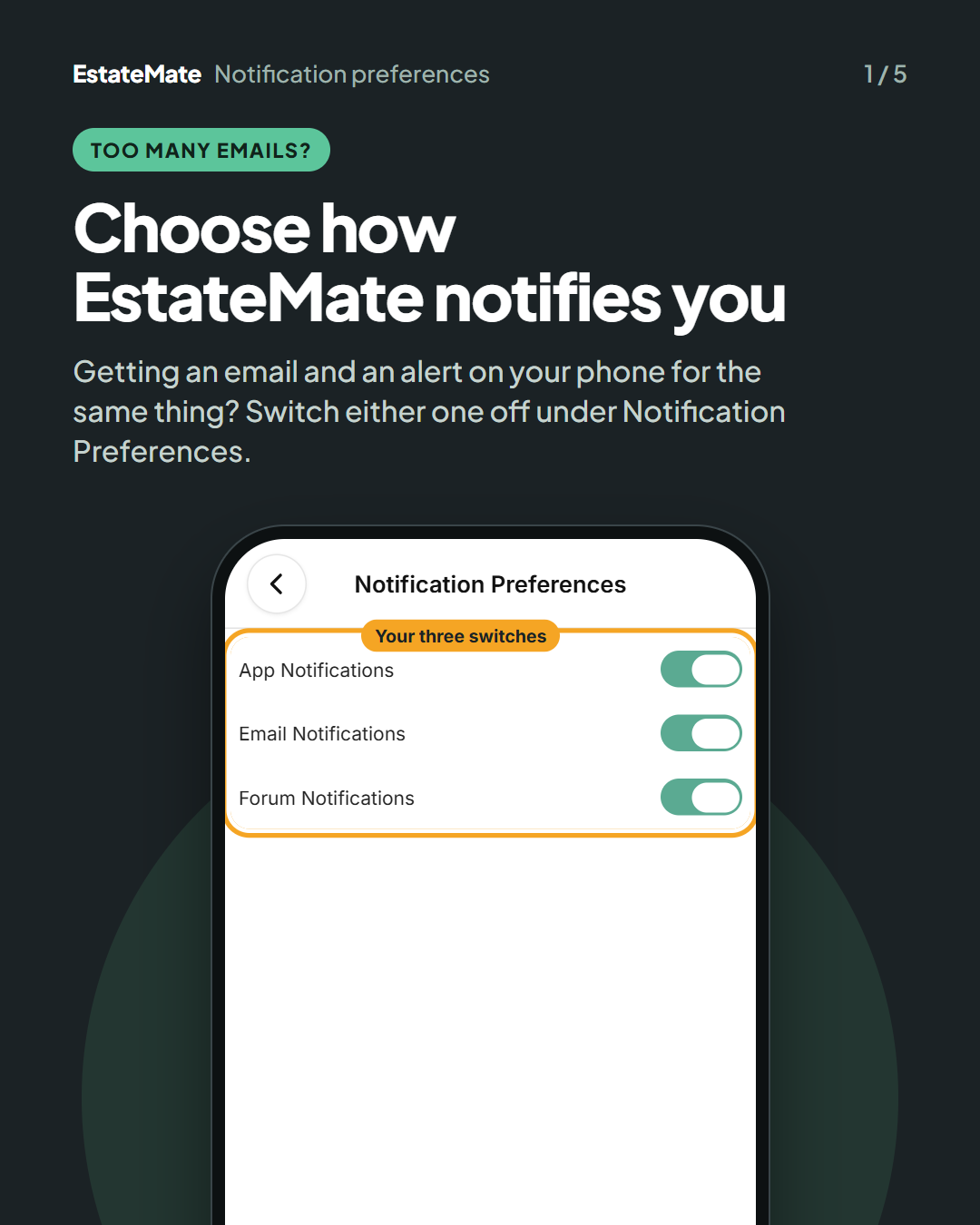
    Cover card. The Notification Preferences screen with three switches, all on: App Notifications, Email Notifications and Forum Notifications. The three are circled together and labelled "Your three switches".
  2. Step 1: open the menu, then Notification Preferences

    On your home screen, tap the three lines at the top left. Then tap Notification Preferences.
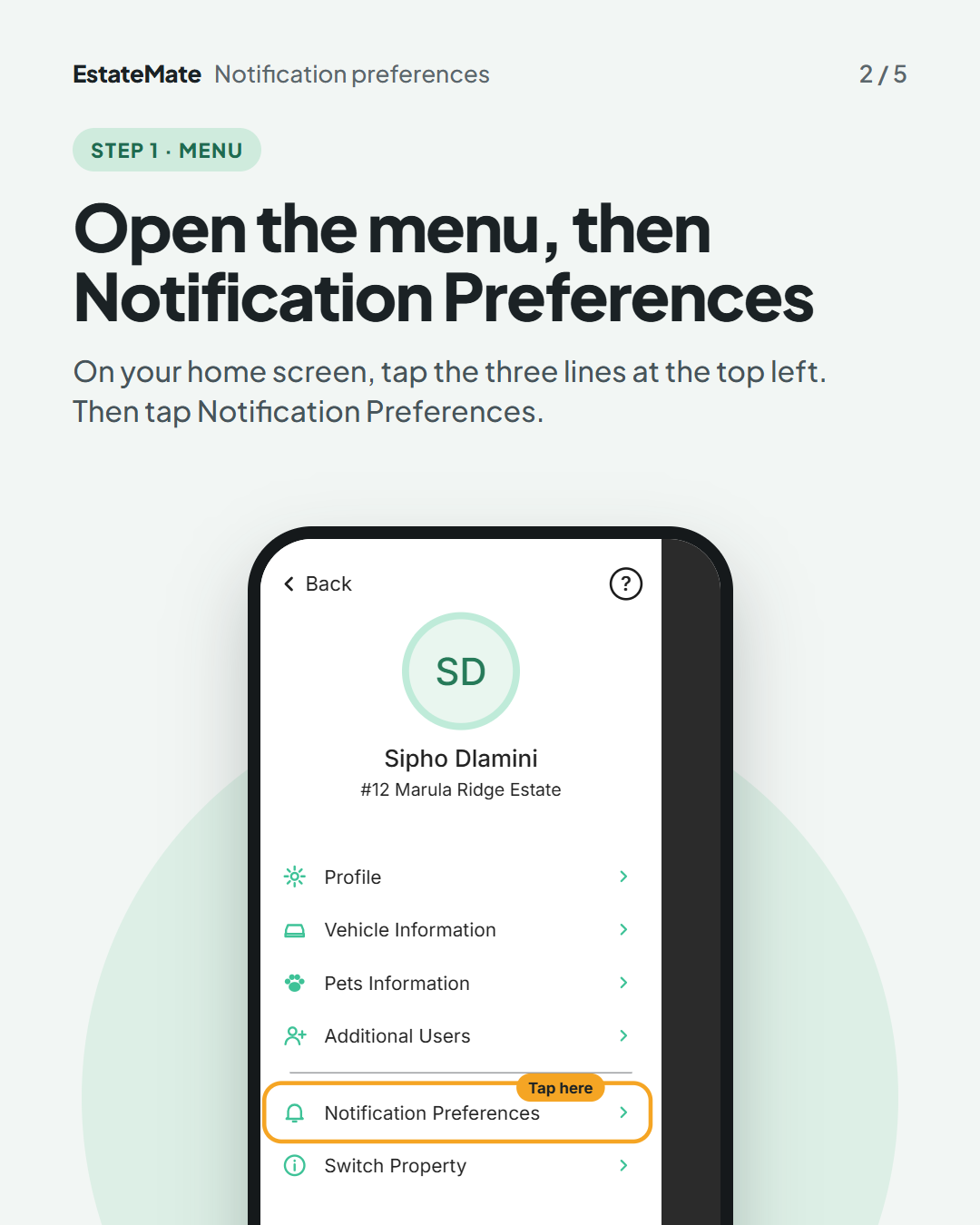
    The app's side menu showing a sample resident (initials SD, Sipho Dlamini, #12 Marula Ridge Estate) and the items Profile, Vehicle Information, Pets Information, Additional Users, Notification Preferences and Switch Property. Notification Preferences is circled and labelled "Tap here".
  3. Step 2: switch each kind on or off

    App Notifications are the alerts on your phone. Email Notifications are the emails. Forum Notifications are for the discussion forum. Green means on.
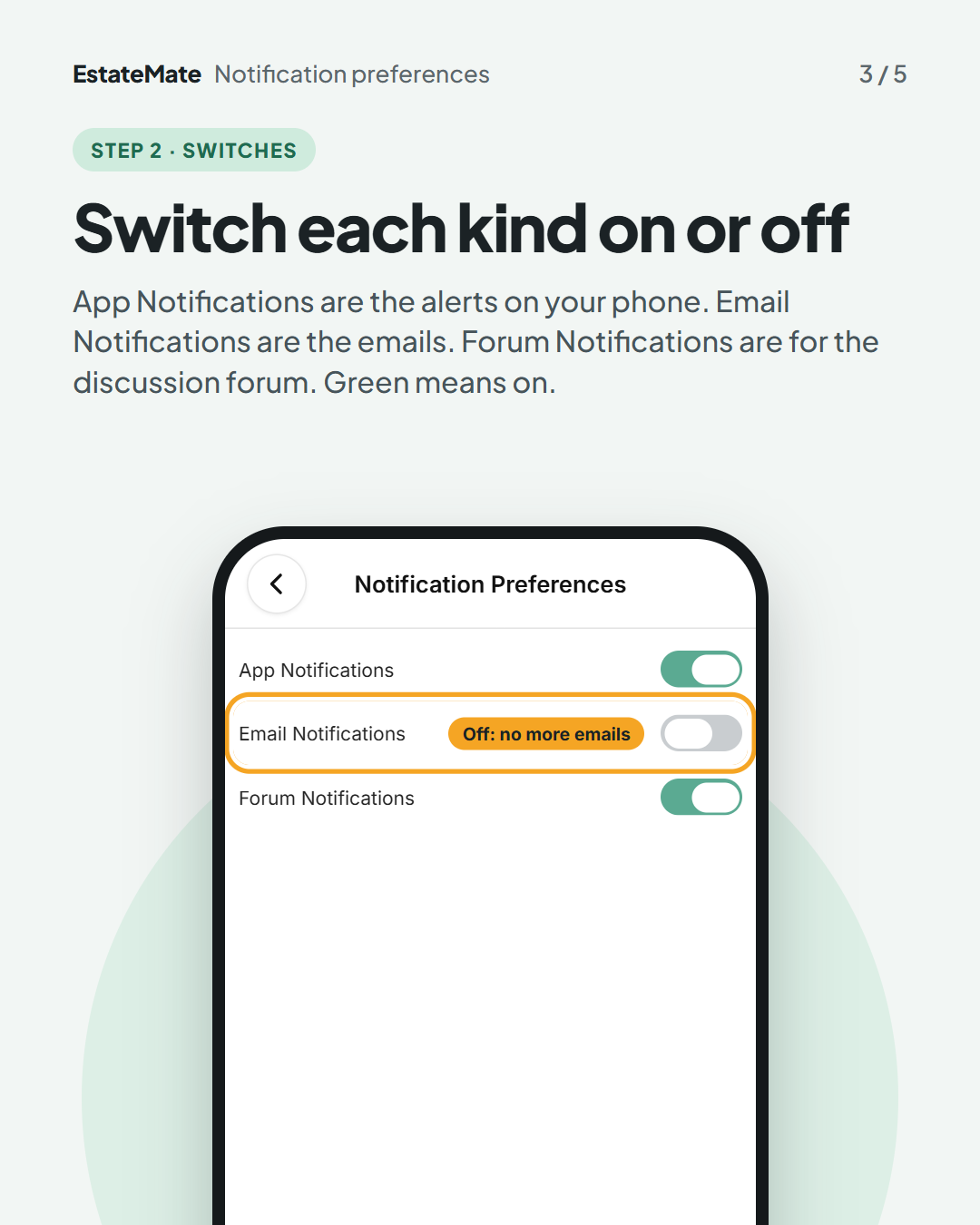
    The Notification Preferences screen. App Notifications and Forum Notifications are green (on). Email Notifications is grey (off), circled and labelled "Off: no more emails".
  4. Good to know: stop the emails, keep the alerts

    1. Leave App Notifications on. You keep getting alerts on your phone.
    2. Switch Email Notifications off. EstateMate stops emailing you.
    3. Changed your mind? Switch it back on at any time.
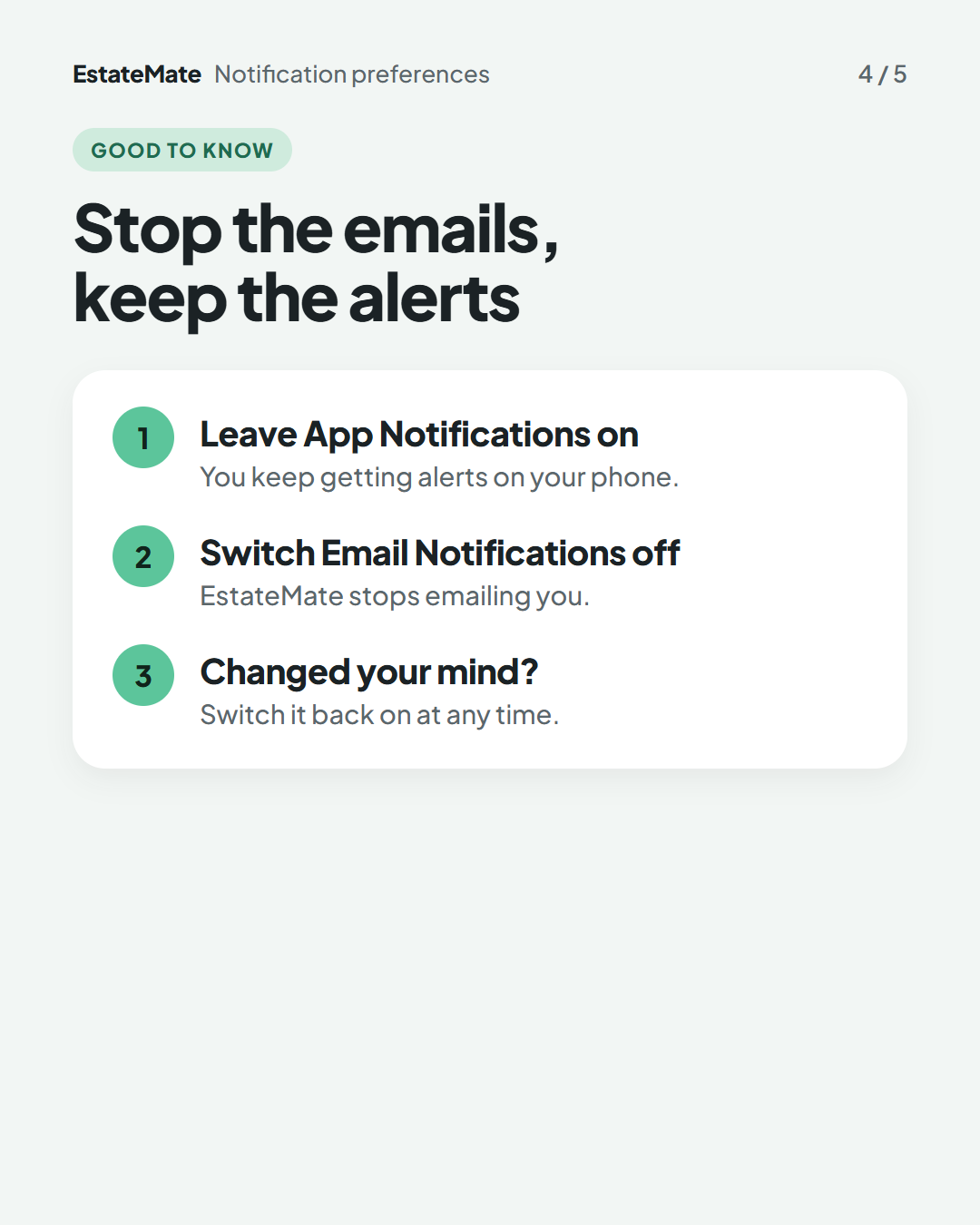
    A white panel with three numbered points: leave App Notifications on, switch Email Notifications off, and switch it back on at any time.
  5. We're listening

    We don't always get it right first time. Building something flexible enough for hundreds of communities, each with its own way of doing things, is always a good challenge. Your feedback is how we make it better. If something feels harder than it should, please let us know at support@estatemate.co.za.
    Closing card on a dark background: "Tell us how it's working for you", with the support email address and the sign-off "The EstateMate team".

Still stuck?

Send us a request. We’ll know you were reading this guide, so you won’t have to explain where you are.

Submit a request