
Skip to content
Product
FeaturesEverything the app does, feature by feature IntegrationsWorks with your gate, security and managing agent PricingFrom R10 per property per month
Who it’s for
Trustees and directorsRun the scheme without the WhatsApp chaos Estate managersOne dashboard for the whole estate Managing agentsWe plug into your system. We don’t replace it. ResidentsGet the app for your estate PartnersFor access control and security providers
Resources
BlogGuides for running a community scheme
Help Contact
Log in
Residents and estate managersLog in to your estate Property managersFor managing agents
  1. Help centre
  2. Guides
  3. Can't log in, or forgot your password
Search the help centre
GuideFor residents

Can't log in, or forgot your password

Reset a forgotten password from the login screen, change it inside the app, and see why a new registration can't log in yet.

Checked for app version 4.37.1Updated 11 November 2026

In short
  • Forgot it? Tap Forgot Password? on the login screen and the app emails you a reset link.
  • Know it? Change it under Profile while you're logged in.
  • Just registered without a One-Time PIN? Your community has to approve you before you can log in.
  1. Tap Forgot Password?

    On the login screen, tap Forgot Password? The app emails you a link to reset it. Then log in with your new password.
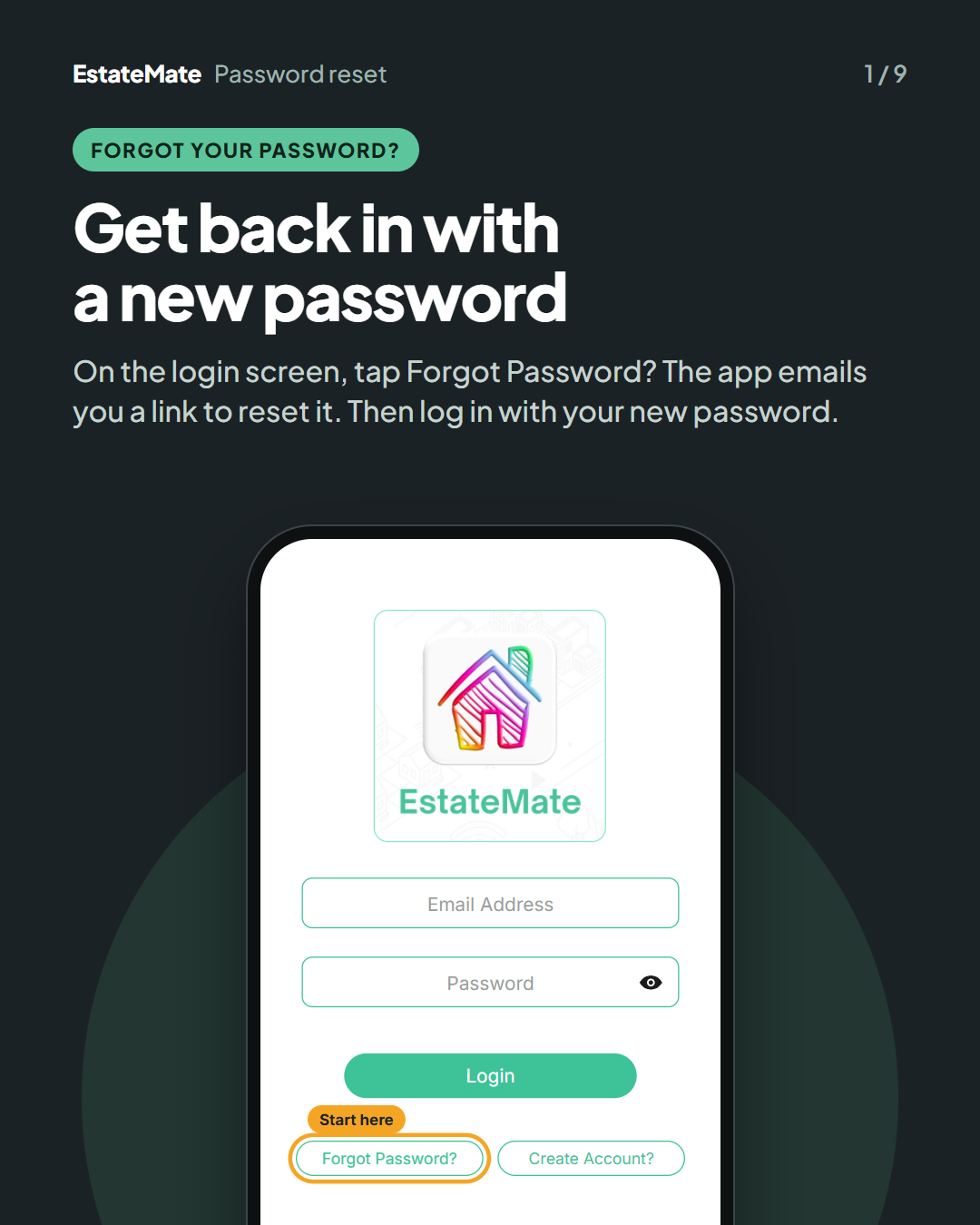
    Cover card. The app's login screen with the EstateMate logo, Email Address and Password fields, and the Login, Forgot Password? and Create Account? buttons. Forgot Password? is circled and labelled "Start here".
  2. Good to know: two ways to change your password

    You've forgotten it. Reset it from the login screen: tap Forgot Password?, get a reset link by email, then log in with your new password.

    You know it. Change it inside the app: open the menu and tap Profile, type your new password twice, then tap Save.
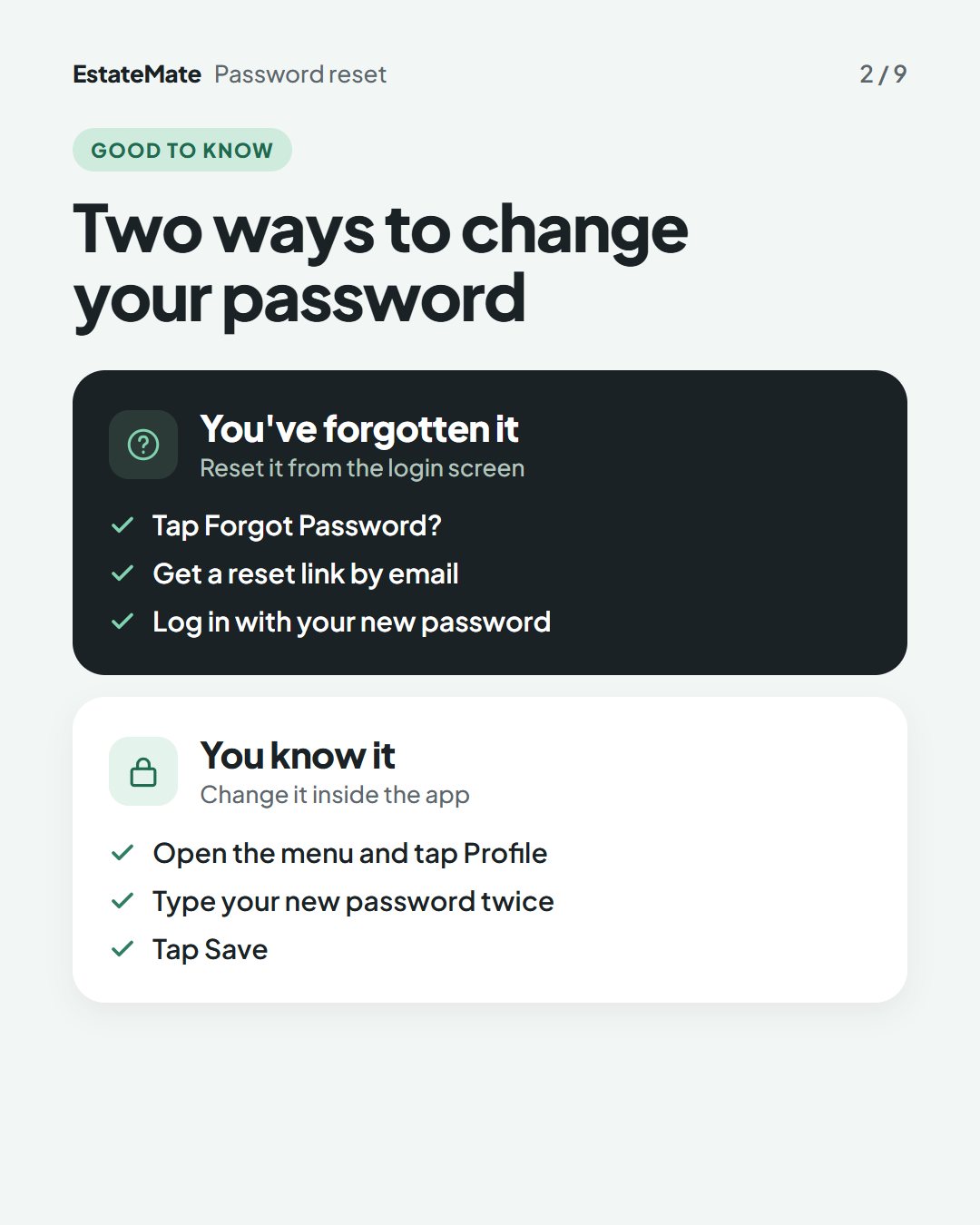
    Two stacked panels. The dark panel, "You've forgotten it", lists three ticks: tap Forgot Password?, get a reset link by email, log in with your new password. The white panel, "You know it", lists three ticks: open the menu and tap Profile, type your new password twice, tap Save.
  3. Step 1: enter the email address you log in with

    Type the email address you use to log in, then tap Send Reset Link.
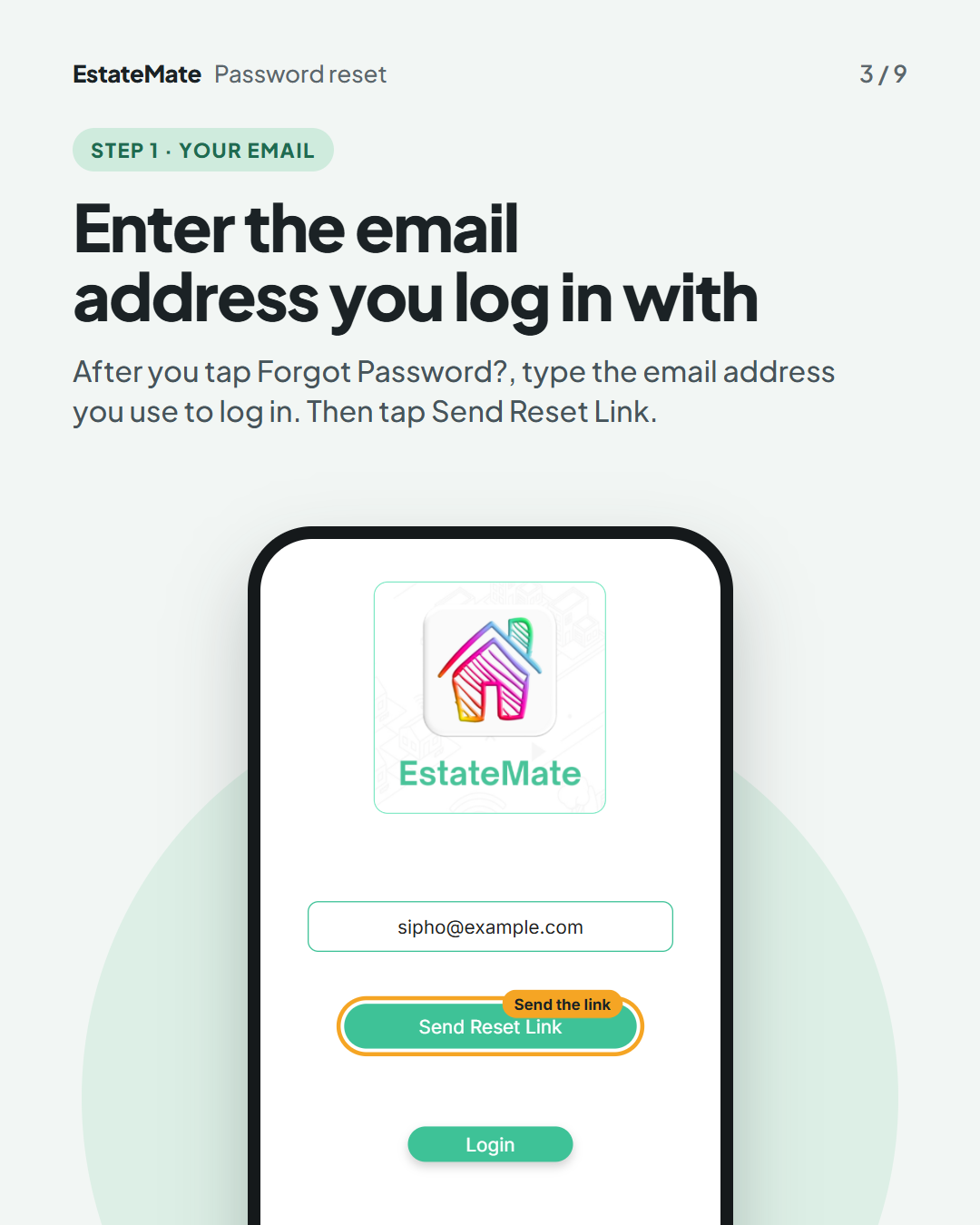
    The reset screen with the EstateMate logo, an email field filled with the sample address sipho@example.com, a circled Send Reset Link button labelled "Send the link", and a smaller Login button below.
  4. Step 2: open the email and reset your password

    The app sends you an email with a link to reset your password. Open the email, follow the link and set your new password.
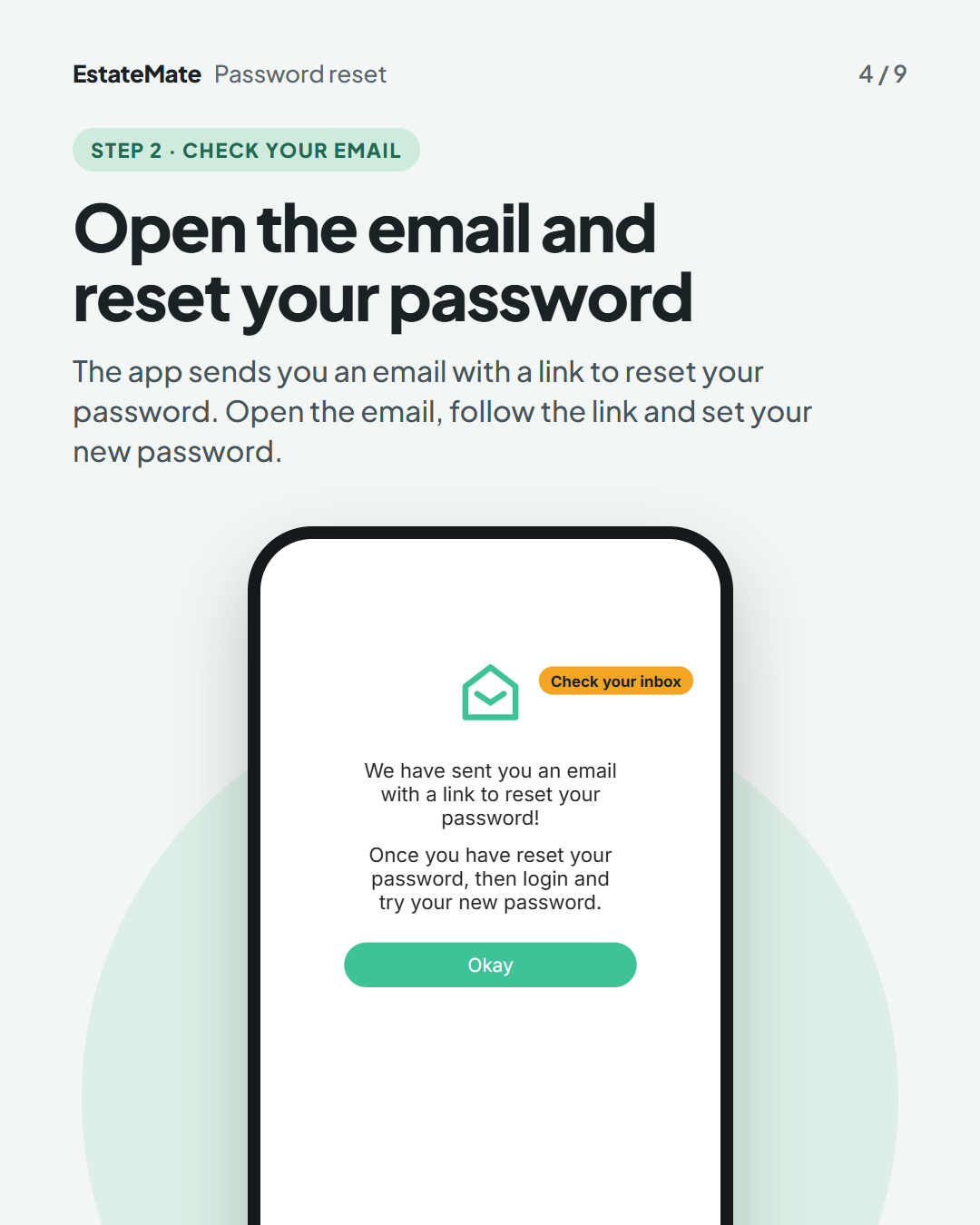
    The confirmation screen with an envelope icon labelled "Check your inbox", the messages "We have sent you an email with a link to reset your password!" and "Once you have reset your password, then login and try your new password.", and an Okay button.
  5. Step 3: log in with your new password

    Go back to the login screen. Enter your email address and your new password, then tap Login.
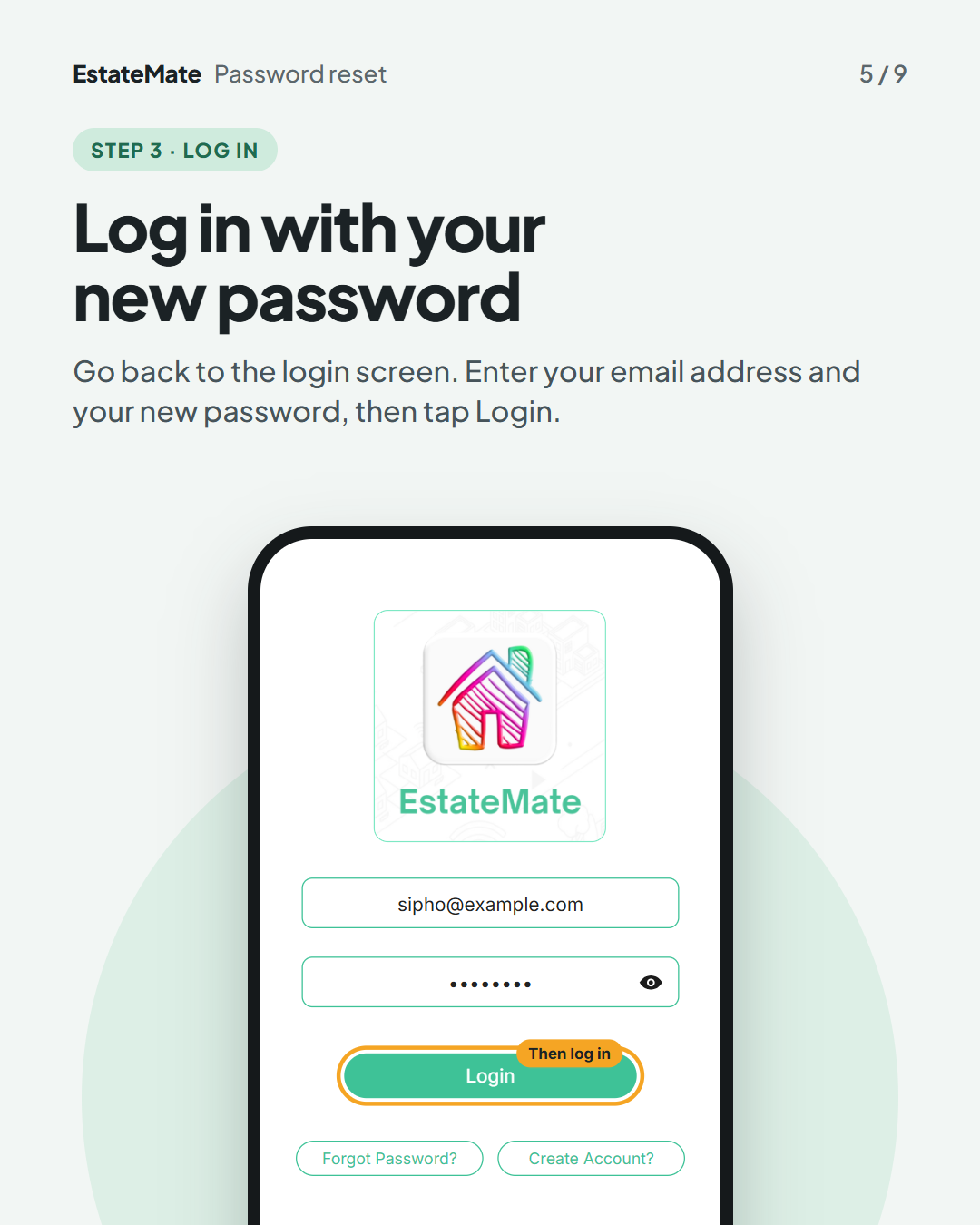
    The login screen with the sample email address filled in and the password shown as dots. The Login button is circled and labelled "Then log in".
  6. In the app, step 1: open your Profile

    You can change your password any time you're logged in. Open the menu from the home screen and tap Profile.
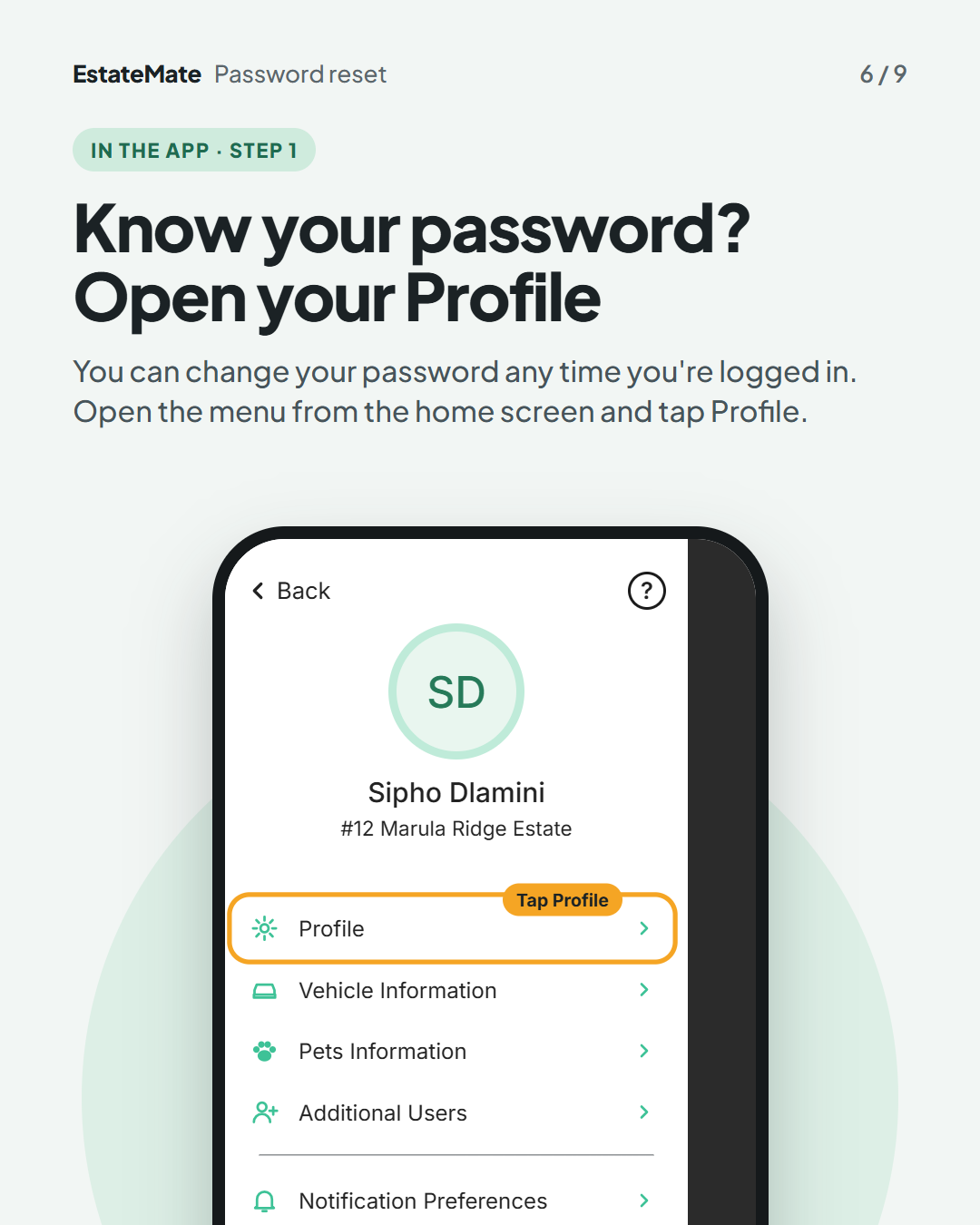
    The app's side menu showing a sample resident (initials SD, Sipho Dlamini, #12 Marula Ridge Estate) and the menu items Profile, Vehicle Information, Pets Information, Additional Users, Notification Preferences and Switch Property. Profile is circled and labelled "Tap Profile".
  7. In the app, step 2: type a new password and save

    Under Change your Password, type your new password in Type New Password, type it again in Confirm Password, then tap Save.
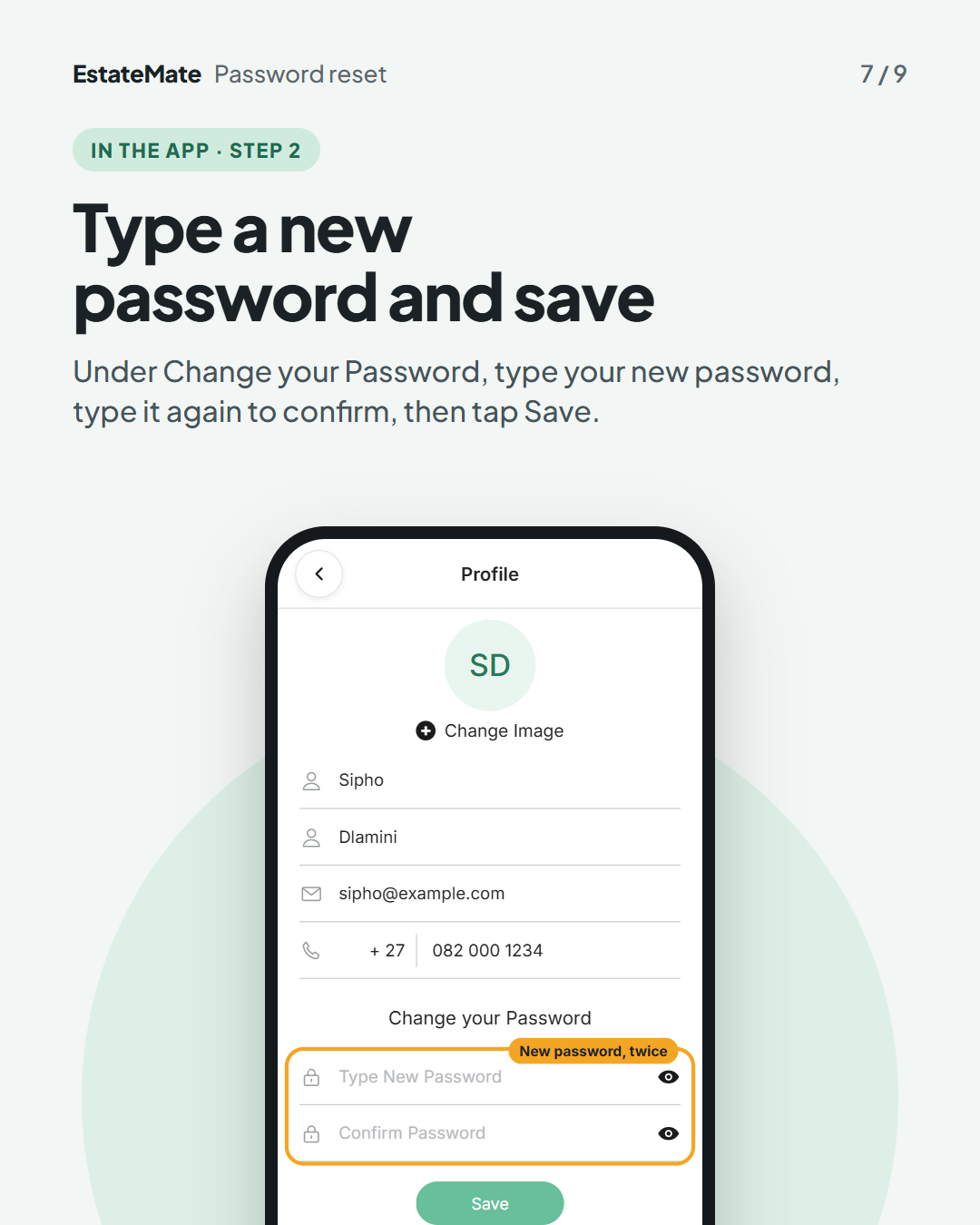
    The Profile screen with sample name, email and phone details. Under Change your Password, the Type New Password and Confirm Password fields are outlined and labelled "New password, twice". The Save button is below.
  8. Still can't log in? You may be waiting for approval

    1. Registered without a One-Time PIN? Your community has to approve your registration before you can log in.
    2. Watch for an email and an SMS. They tell you when you're approved or rejected. Once you're approved, log in.
    3. Something else? Tap HELP at the bottom of the login screen, or email support@estatemate.co.za.
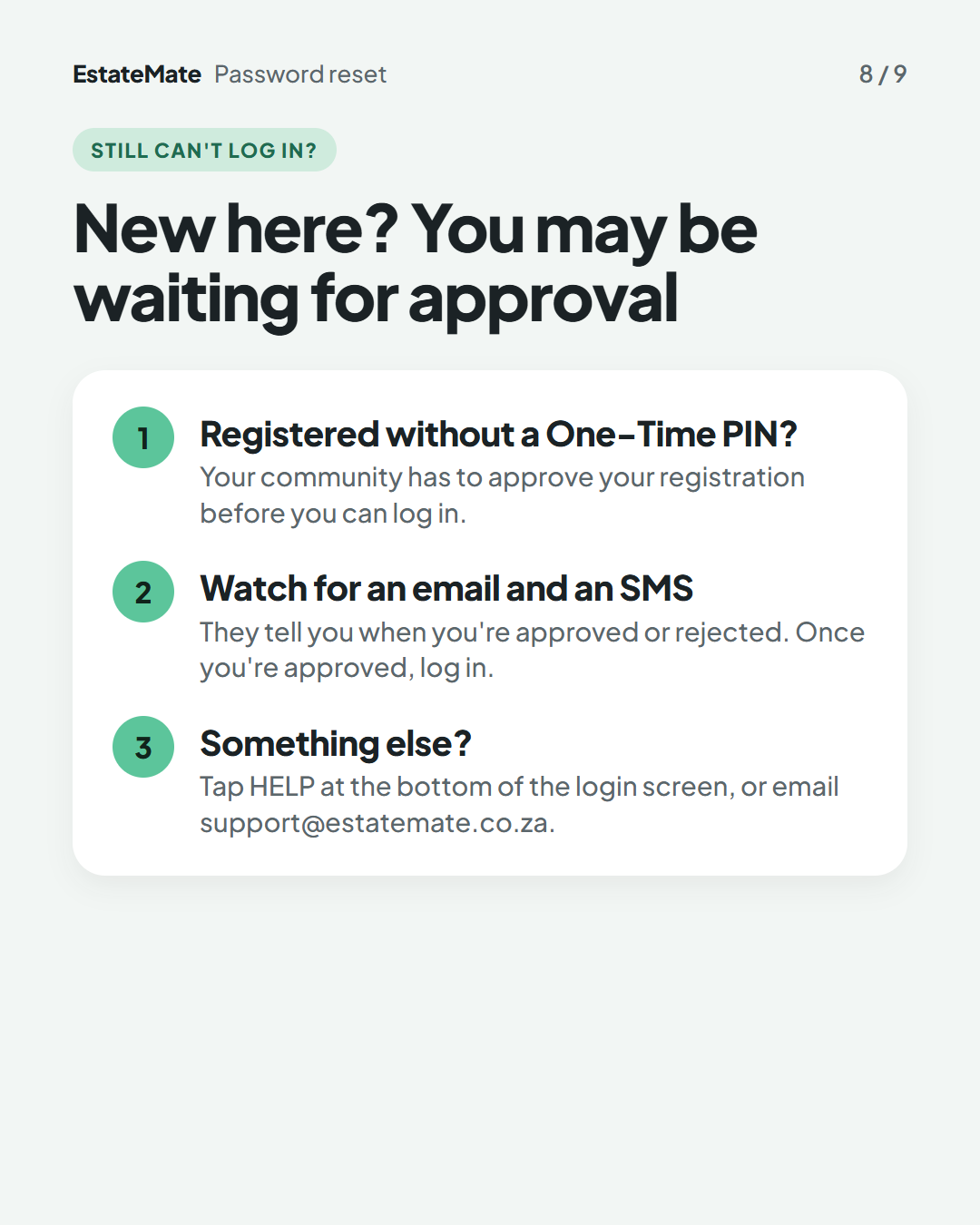
    A checklist card with three numbered points: registered without a One-Time PIN, watch for an email and an SMS, and something else, with the support email address.
  9. We're listening

    We don't always get it right first time. Building something flexible enough for hundreds of communities, each with its own way of doing things, is always a good challenge. Your feedback is how we make it better. If something feels harder than it should, please let us know at support@estatemate.co.za.
    Closing card on a dark background: "Tell us how it's working for you", with the support email address and the sign-off "The EstateMate team".

Still stuck?

Send us a request. We’ll know you were reading this guide, so you won’t have to explain where you are.

Submit a request