
Skip to content
Product
FeaturesEverything the app does, feature by feature IntegrationsWorks with your gate, security and managing agent PricingFrom R10 per property per month
Who it’s for
Trustees and directorsRun the scheme without the WhatsApp chaos Estate managersOne dashboard for the whole estate Managing agentsWe plug into your system. We don’t replace it. ResidentsGet the app for your estate PartnersFor access control and security providers
Resources
BlogGuides for running a community scheme
Help Contact
Log in
Residents and estate managersLog in to your estate Property managersFor managing agents
  1. Help centre
  2. Guides
  3. Ongoing access for people who come often
Search the help centre
GuideFor residents

Ongoing access for people who come often

Request ongoing gate access for family, helpers, gardeners and long-term contractors, then follow the request until it's approved or declined.

Updated 11 November 2026

In short
  • Request it from the Access Profiles tab. The types you can request are set by your community.
  • Estate management reviews every request. They approve it, or decline it with a reason you can see.
  • Notifications are coming soon. For now, check My profiles for updates.
  1. Ongoing access for people who come often

    Family, helpers, gardeners and long-term contractors can be added to the gate. Request it from the Access Profiles tab.

    1. You send a request. Pick the type of access and who it's for.
    2. Estate management reviews it. They approve it, or decline with a reason.
    3. They're added to the gate. Access stays active until the end date.

    The types you can request are set by your community.
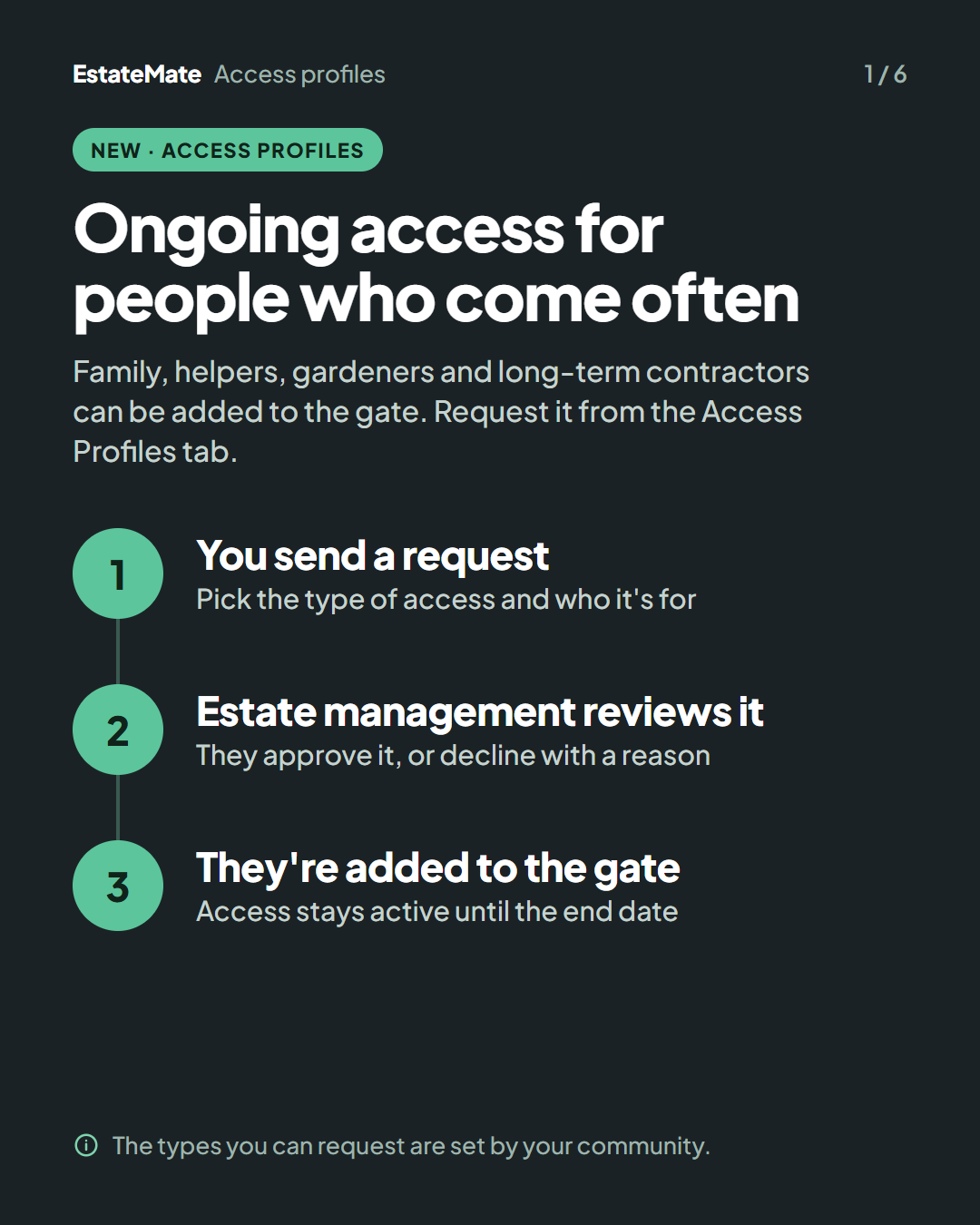
    Cover card on a dark background with three numbered steps joined by a line: you send a request, estate management reviews it, they're added to the gate. A note at the bottom reads "The types you can request are set by your community."
  2. Step 1: pick the type of access you need

    On the Request tab, each type shows what you'll need to provide, how many people you can add and how long access lasts.
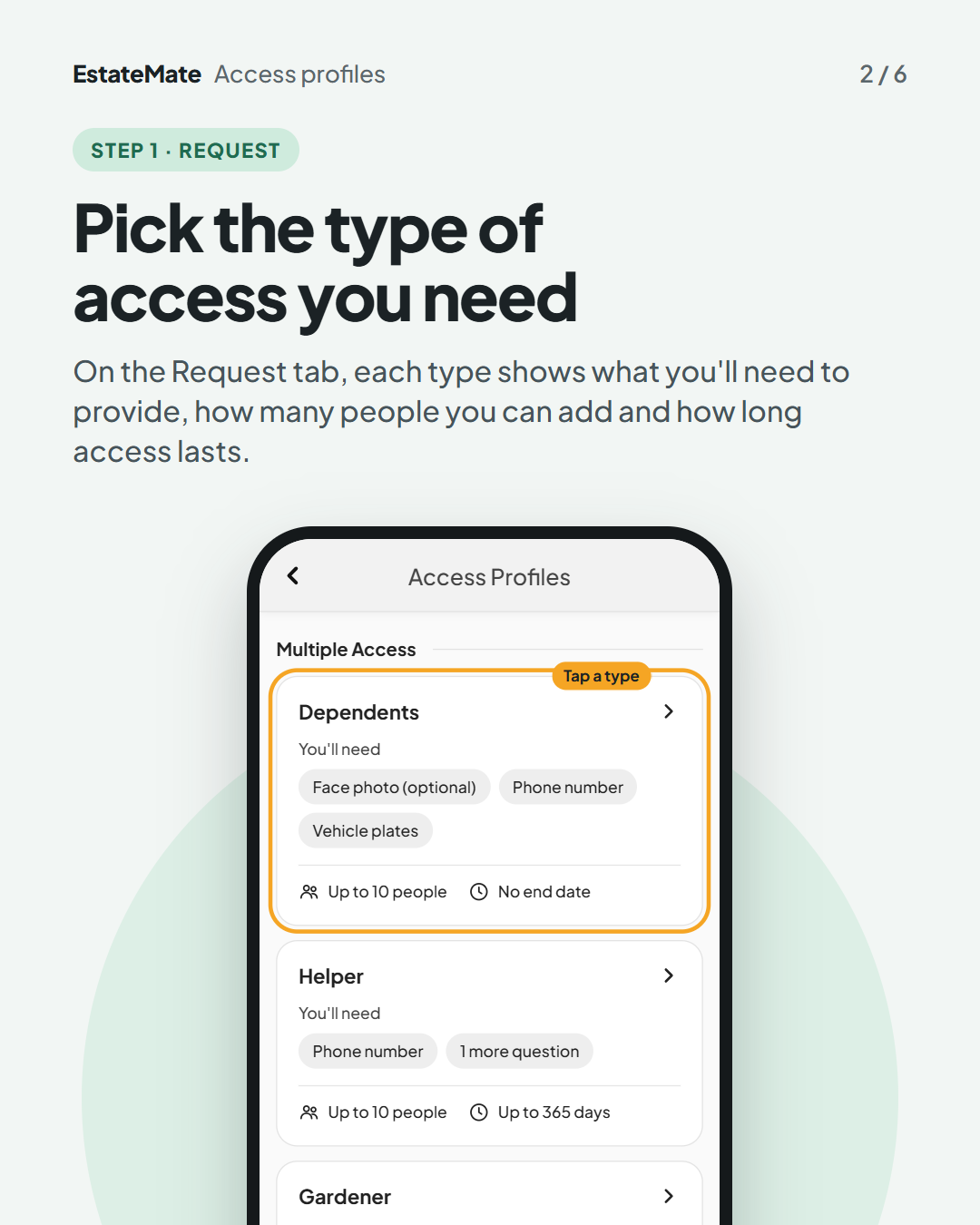
    The Access Profiles screen with a list of types under the heading "Multiple Access". Dependents is circled and labelled "Tap a type"; it shows "You'll need" with Face photo (optional), Phone number and Vehicle plates, then "Up to 10 people" and "No end date". Below it, Helper shows Phone number and "1 more question", "Up to 10 people" and "Up to 365 days". Gardener is partly visible.
  3. Step 2: set the dates and add who it's for

    Choose when access starts and ends, then add each person and what the type asks for, like a phone number, vehicle plates or a face photo. Access ends automatically. Choose a specific end date only if you need it to end earlier.
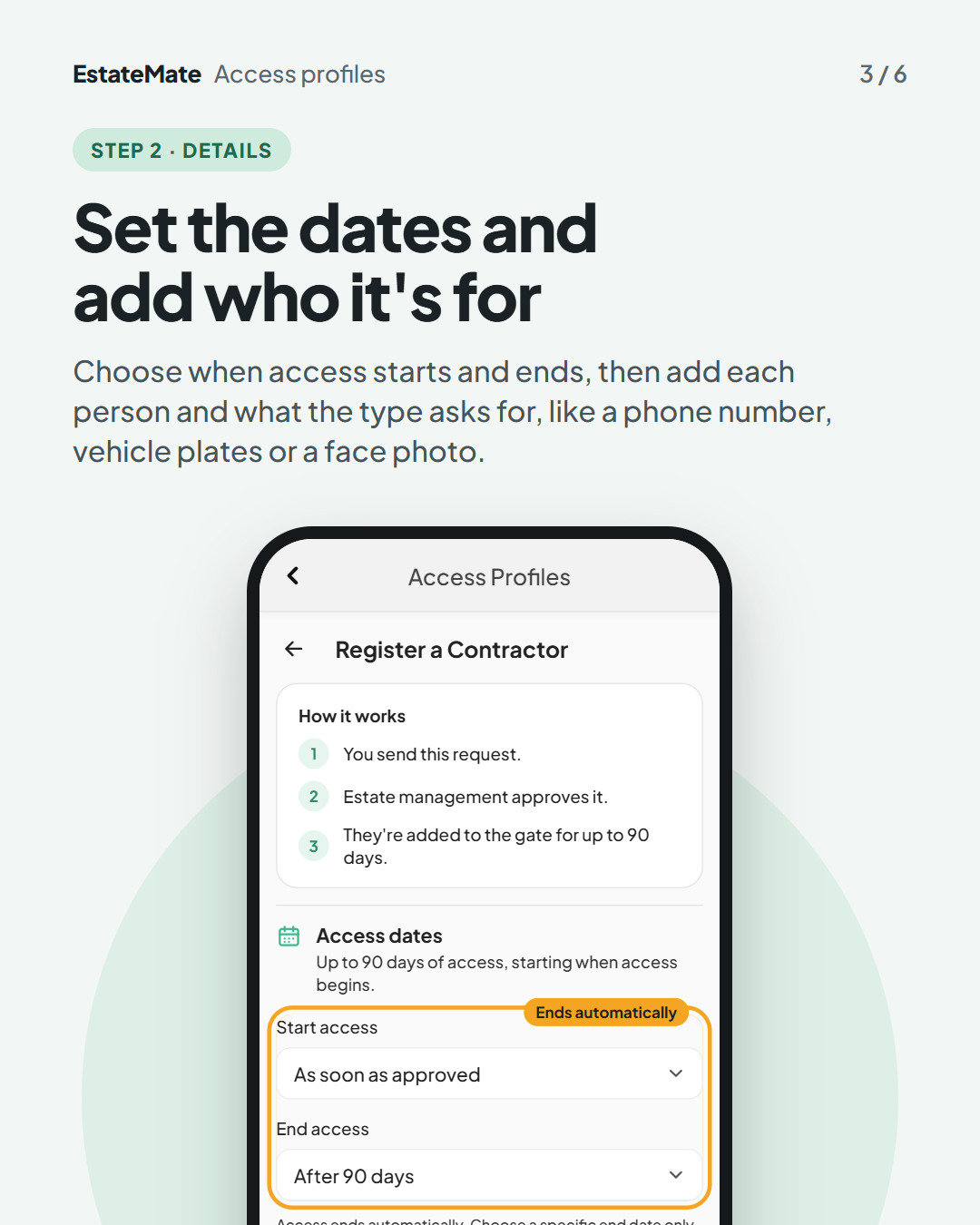
    The "Register a Contractor" request screen. A "How it works" box lists three steps: you send this request, estate management approves it, they're added to the gate for up to 90 days. Under "Access dates", the Start access field ("As soon as approved") and the End access field ("After 90 days") are circled and labelled "Ends automatically".
  4. Step 3: follow your request in My profiles

    Each request shows Pending, Approved, Declined or Cancelled. Notifications are coming soon, so for now check here for updates.
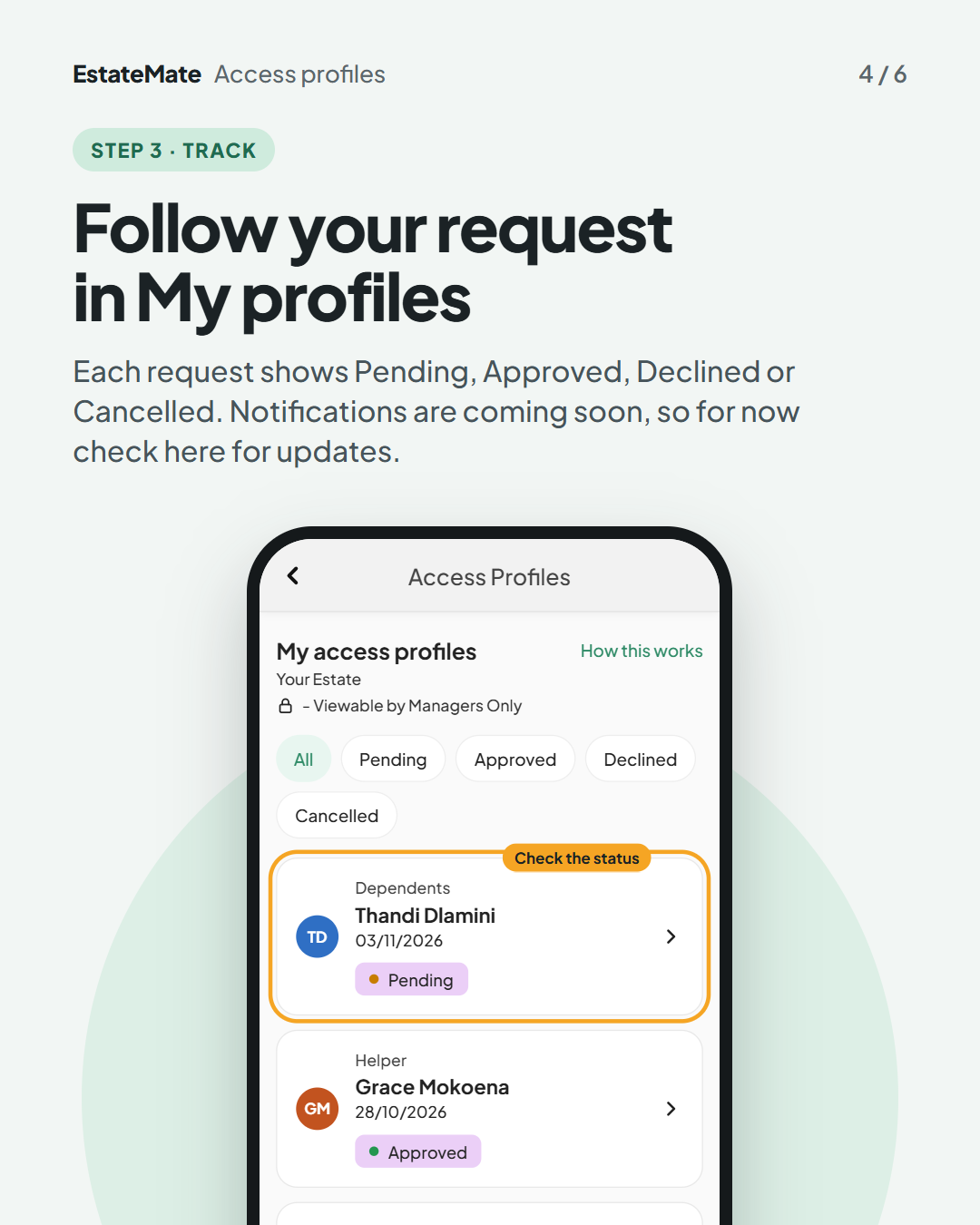
    The "My access profiles" screen with filter chips for All, Pending, Approved, Declined and Cancelled. The first request, a Dependents request for a sample person with a Pending tag, is circled and labelled "Check the status". Below it are a Helper request marked Approved and a Contractor request marked Declined, each with initials and a date.
  5. Good to know: approved or declined, what happens next

    Approved. Estate management said yes. They're added to the gate, access runs until the end date, and face access works if the type includes it.

    Declined. You'll always see why. The reason shows on your request. You can start a new request from Request, or contact your estate management.
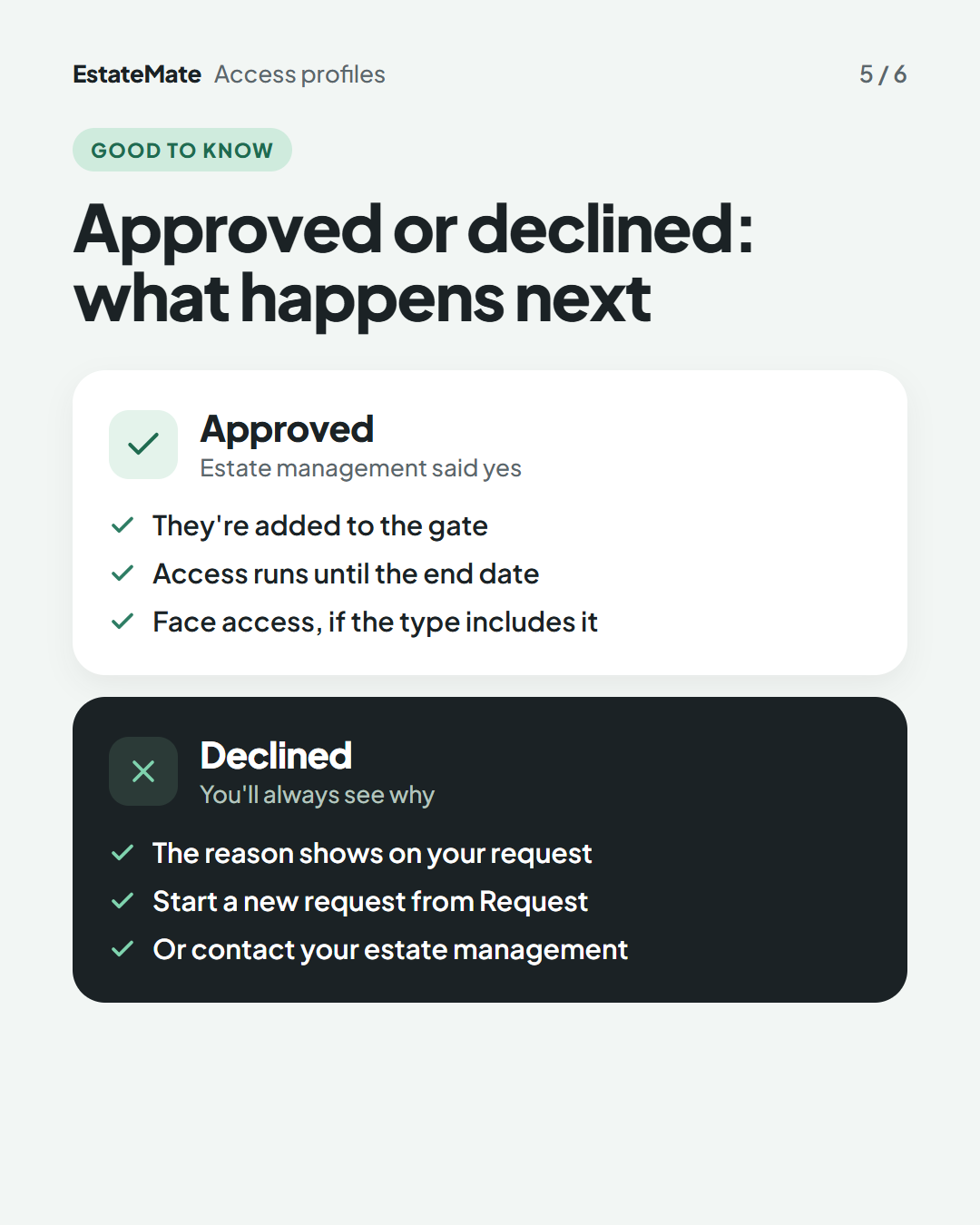
    Two stacked panels. The white panel, "Approved", has three ticks: they're added to the gate, access runs until the end date, face access if the type includes it. The dark panel, "Declined", has three ticks: the reason shows on your request, start a new request from Request, or contact your estate management.
  6. We're listening

    We don't always get it right first time. Building something flexible enough for hundreds of communities, each with its own way of doing things, is always a good challenge. Your feedback is how we make it better. If something feels harder than it should, please let us know at support@estatemate.co.za.
    Closing card on a dark background: "Tell us how it's working for you", with the support email address and the sign-off "The EstateMate team".

The types you can request, how many people each allows and how long access lasts are set by your community, so your list may look different from the examples in this guide.

Still stuck?

Send us a request. We’ll know you were reading this guide, so you won’t have to explain where you are.

Submit a request