Skip to content
Product
FeaturesEverything the app does, feature by feature IntegrationsWorks with your gate, security and managing agent PricingFrom R10 per property per month
Who it’s for
Trustees and directorsRun the scheme without the WhatsApp chaos Estate managersOne dashboard for the whole estate Managing agentsWe plug into your system. We don’t replace it. ResidentsGet the app for your estate PartnersFor access control and security providers
Resources
BlogGuides for running a community scheme
Help Contact
Log in
Residents and estate managersLog in to your estate Property managersFor managing agents
  1. Help centre
  2. Guides
  3. Report an issue to estate management
Search the help centre
GuideFor residents

Report an issue to estate management

Tap CREATE, choose Report an Issue, add the details and a photo, then follow your report and its status under TICKETS.

Checked for app version 4.37.1Updated 11 November 2026

In short
  • Tap CREATE on your home screen, then Report an Issue.
  • Pick a subject, describe the problem, add a photo, set the urgency and tap Submit. A location is optional.
  • Follow your report under TICKETS, then Issues Reported. It shows as Pending, Important or Resolved.
  1. Tell estate management what needs fixing

    Tap CREATE on your home screen and choose Report an Issue. Add the details, then follow your report under TICKETS.
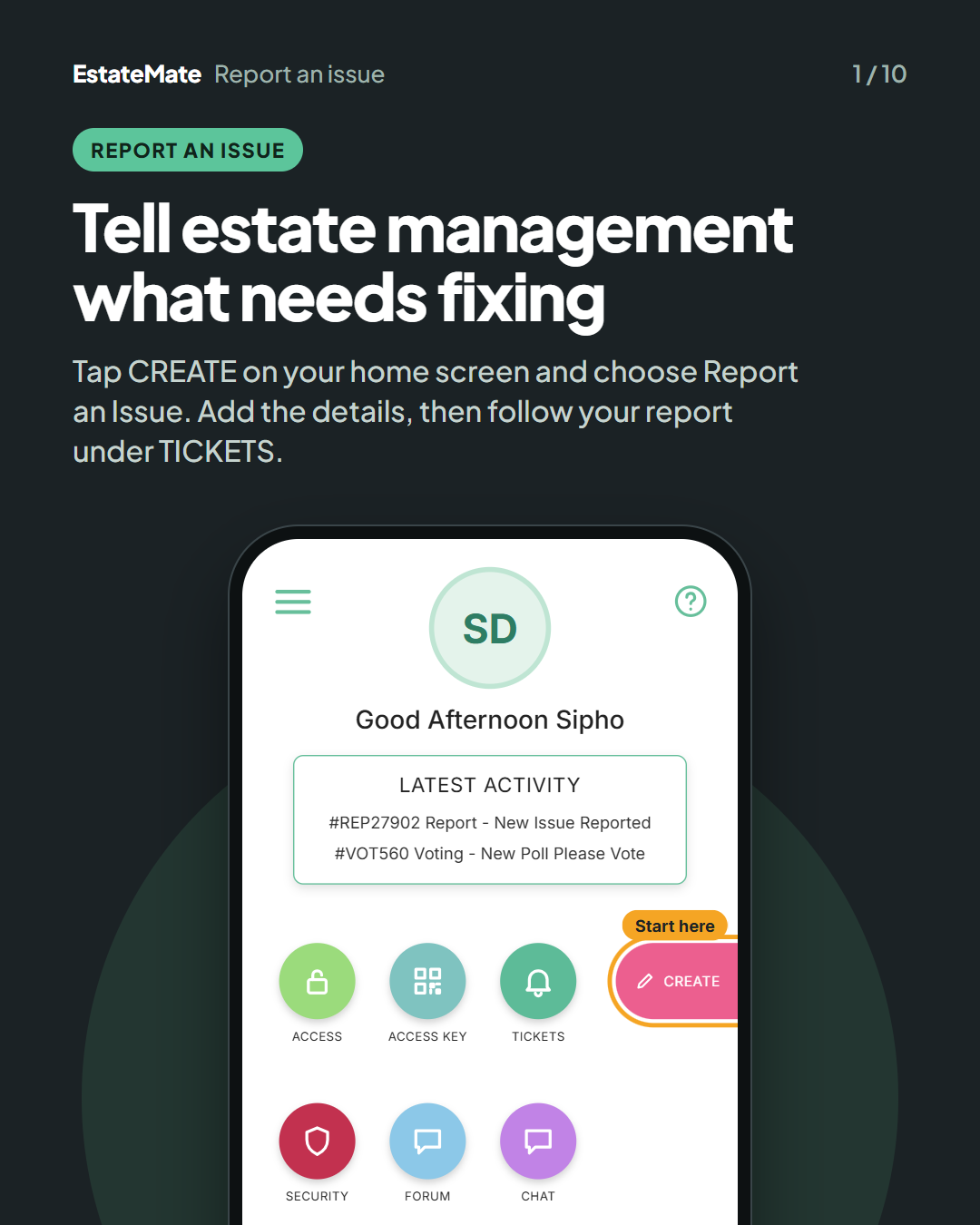
    Cover card. The home screen with a sample resident's initials, a greeting, a Latest Activity box and the round icons ACCESS, ACCESS KEY, TICKETS and, below, SECURITY, FORUM and CHAT. The pink CREATE button on the right is circled and labelled "Start here".
  2. Step 1: tap CREATE, then Report an Issue

    CREATE opens the Creation Centre. Report an Issue is at the top of the list.
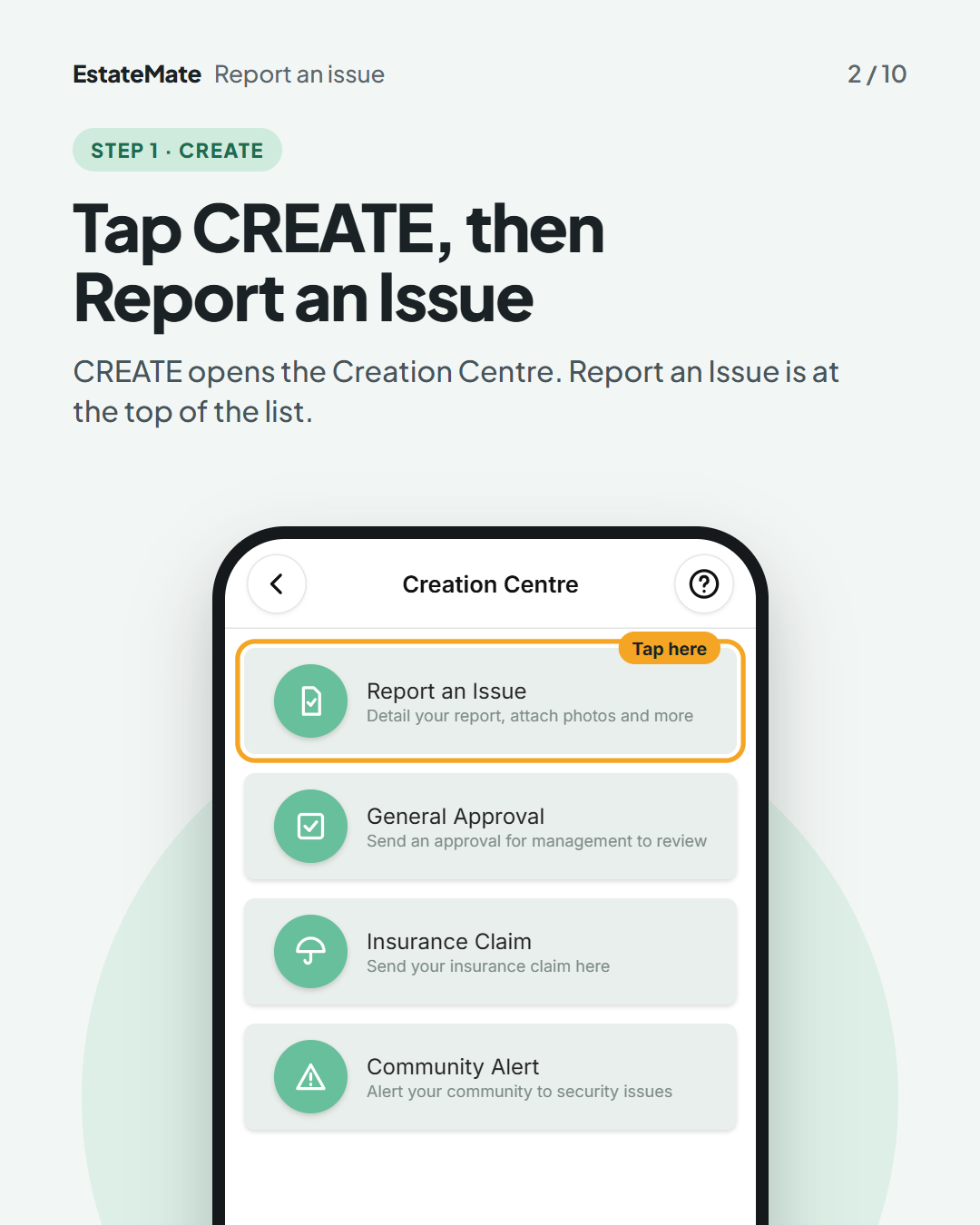
    The Creation Centre with four tiles: Report an Issue ("Detail your report, attach photos and more"), General Approval, Insurance Claim and Community Alert. Report an Issue is circled and labelled "Tap here".
  3. Step 2: pick the subject that fits best

    Tap Title and choose from the list. The subjects you see are set by your community.
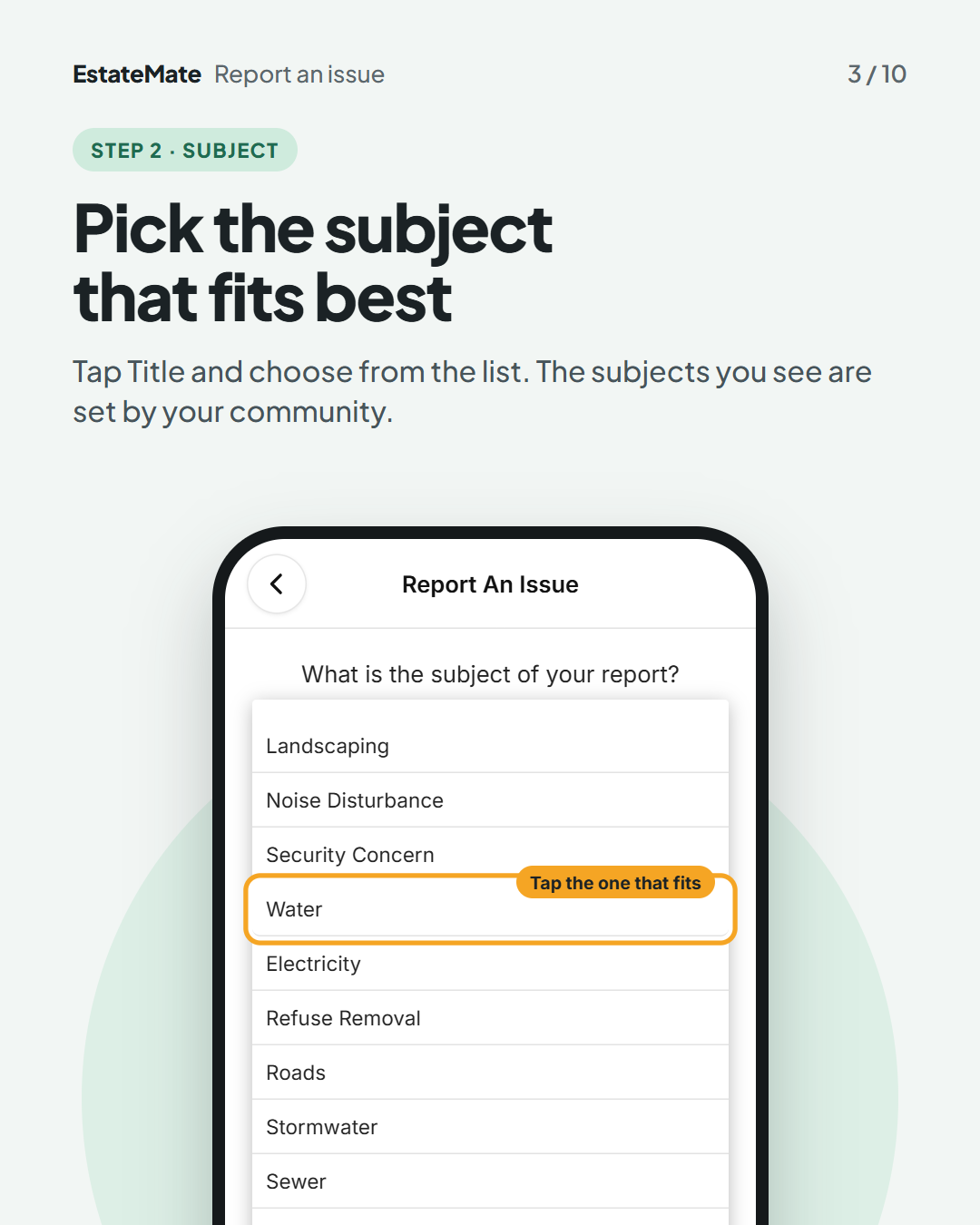
    The Report An Issue screen with the question "What is the subject of your report?" and an open list: Landscaping, Noise Disturbance, Security Concern, Water, Electricity, Refuse Removal, Roads, Stormwater, Sewer and Clubhouse. Water is circled and labelled "Tap the one that fits".
  4. Step 3: describe it and add a photo

    Give as much detail as you can. Tap the camera to upload a photo if it helps.
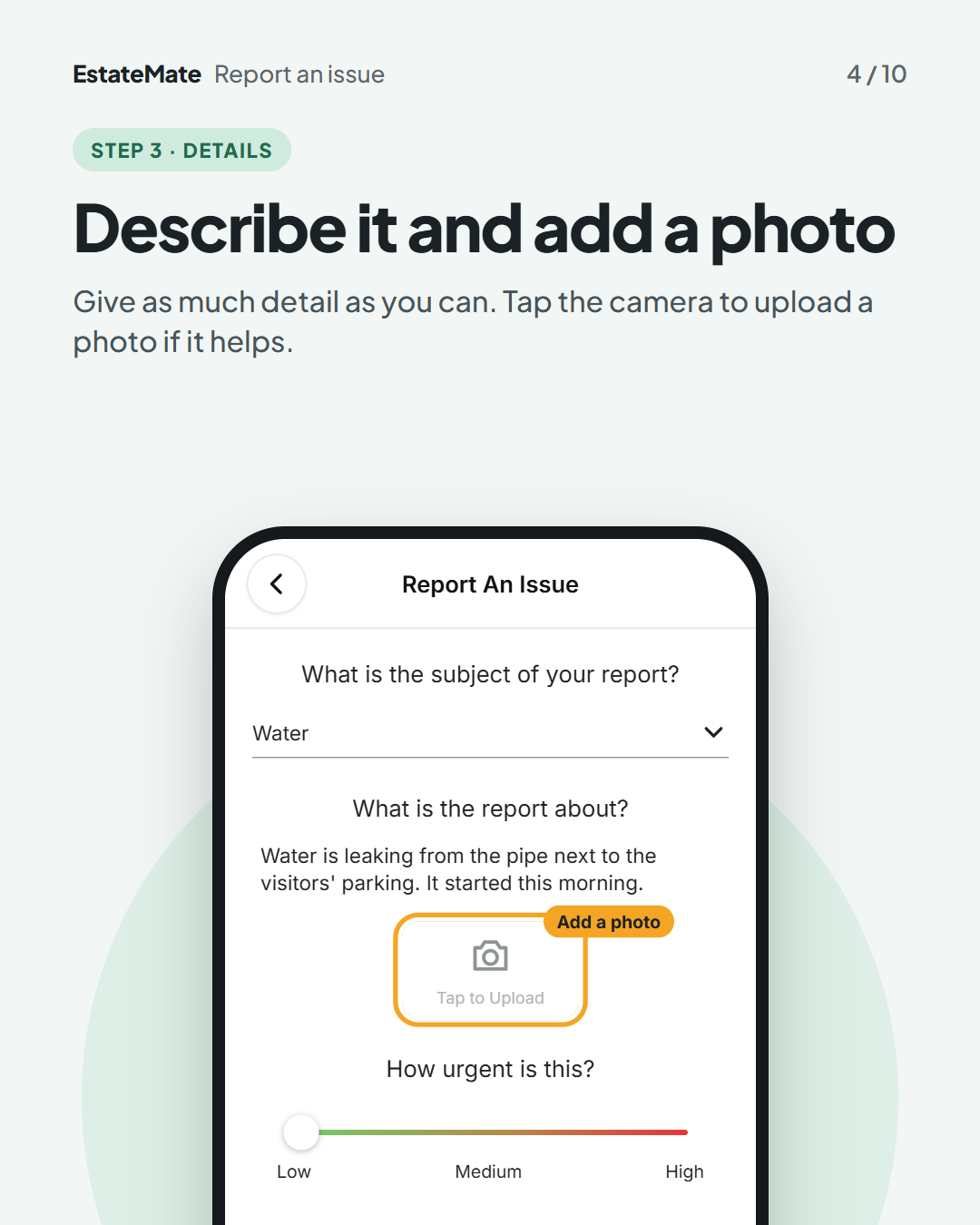
    The same screen with Water chosen as the subject and a sample description under "What is the report about?". The camera icon with "Tap to Upload" is circled and labelled "Add a photo". Below it is "How urgent is this?" with a slider from Low to High.
  5. Step 4: set the urgency, then tap Submit

    Slide from Low to High. Choose Yes if you want to add a location, then tap Submit to send your report.
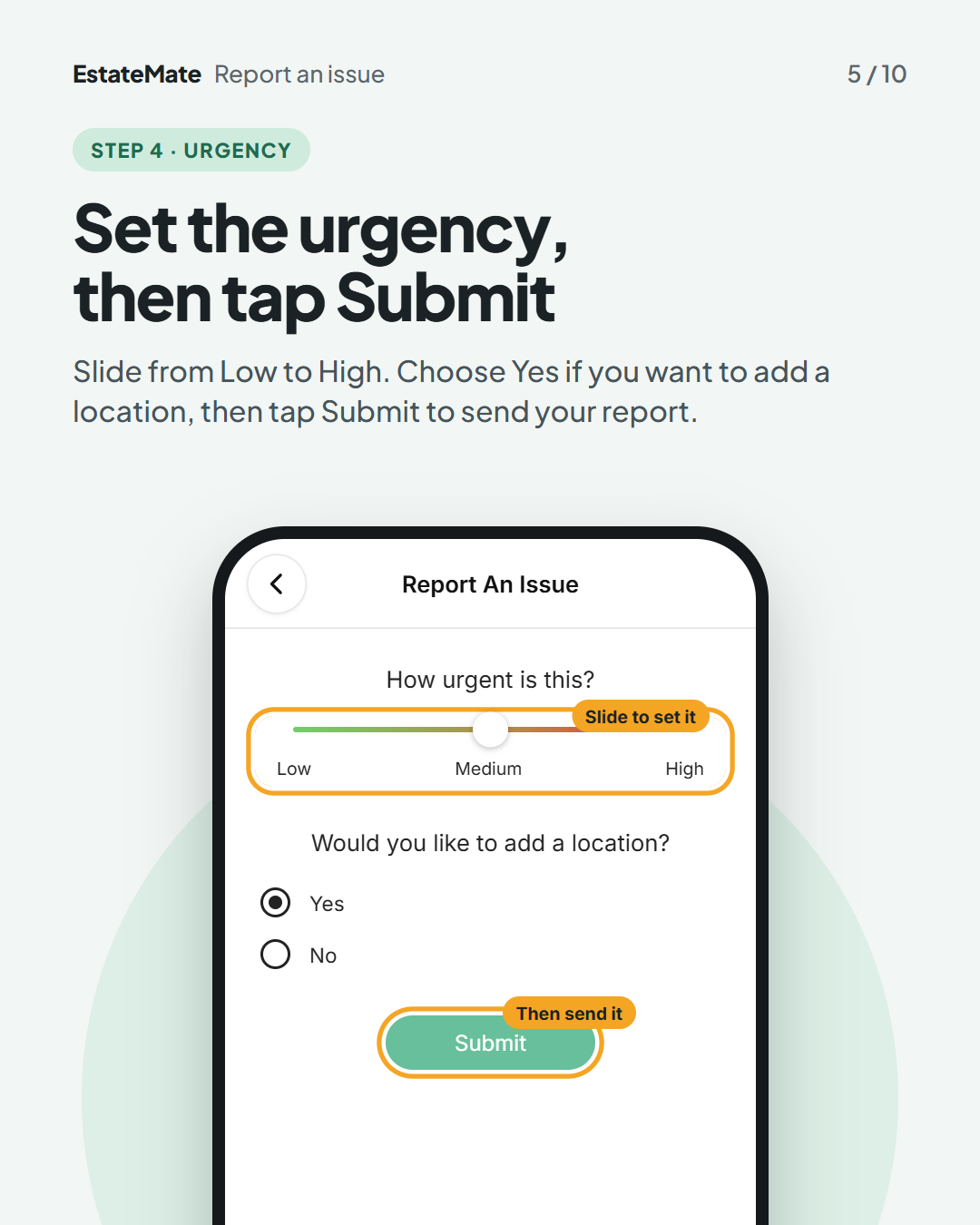
    The lower part of the form. The urgency slider, set to Medium, is circled and labelled "Slide to set it". Under "Would you like to add a location?" Yes is selected and No is not. The green Submit button is circled and labelled "Then send it".
  6. Optional: show where it is on the map

    You don't have to. If you chose Yes, tap Use my Current Location to drop the pin where you are, then tap Save.
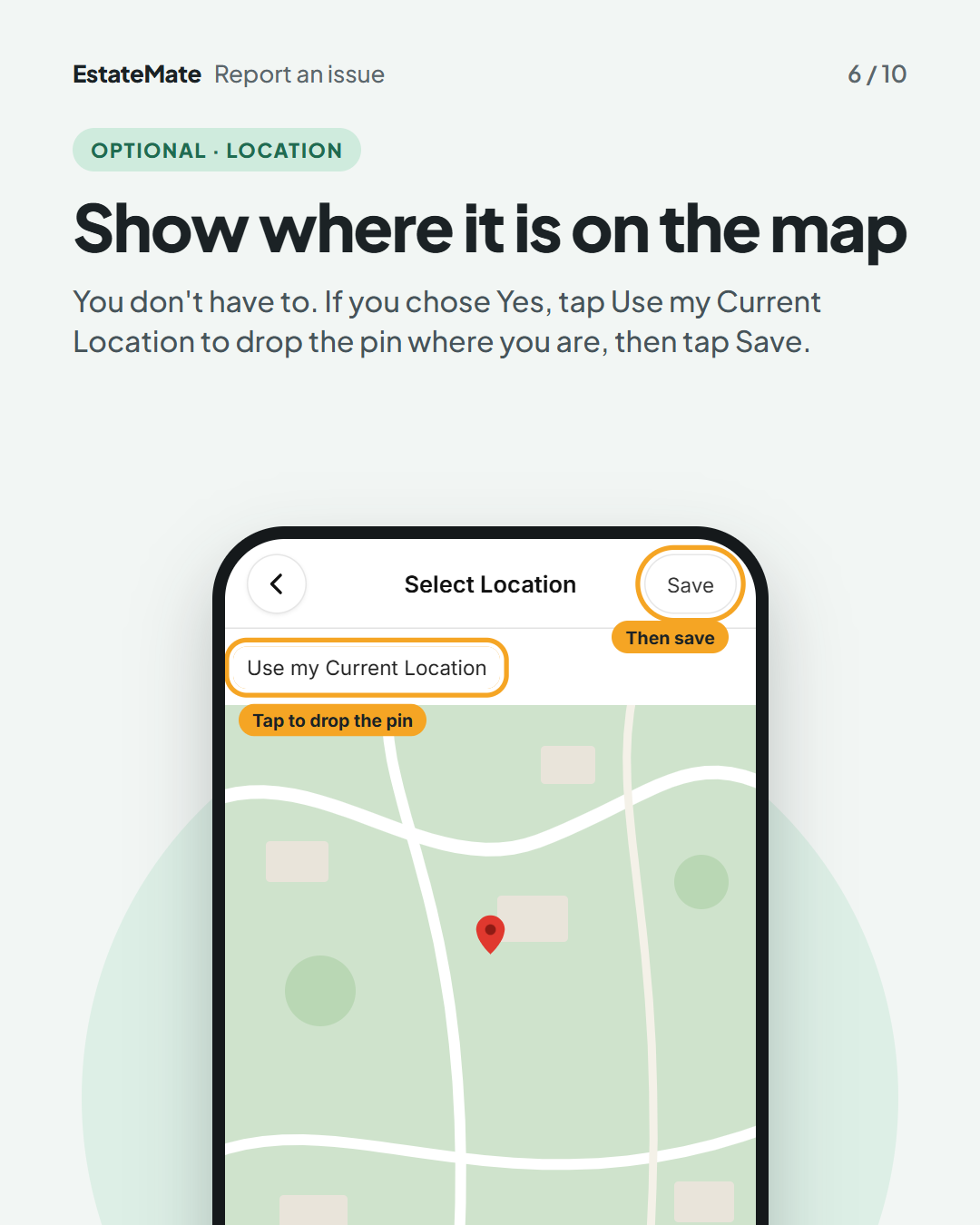
    The Select Location screen. "Use my Current Location" is circled and labelled "Tap to drop the pin". A simple map shows a red pin. The Save button at the top right is circled and labelled "Then save".
  7. Follow up: find your report under TICKETS

    On your home screen, tap TICKETS. Then tap Issues Reported to see everything you have sent.
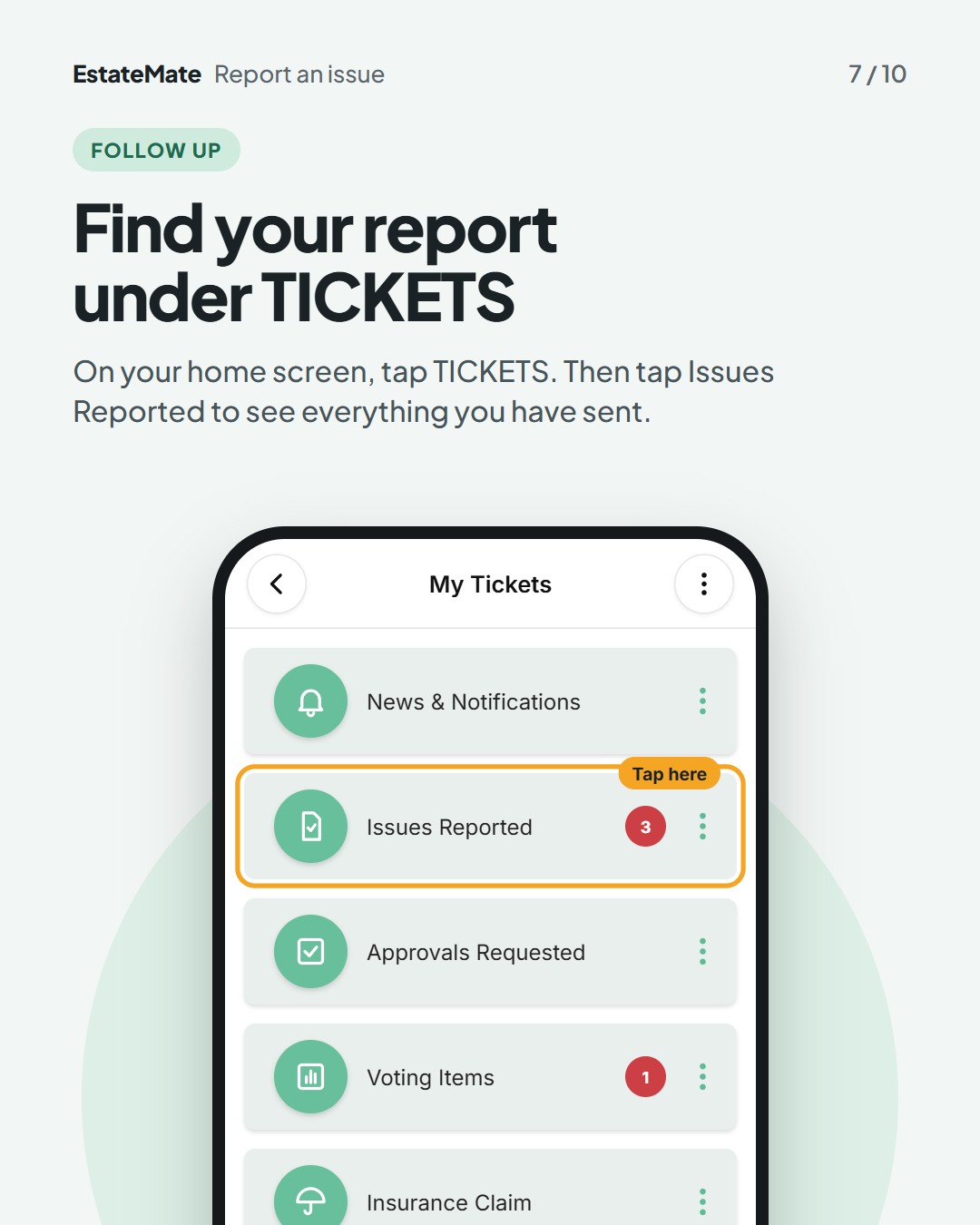
    The My Tickets screen with tiles for News & Notifications, Issues Reported, Approvals Requested, Voting Items and Insurance Claim. Issues Reported, with a red badge showing 3, is circled and labelled "Tap here".
  8. Follow up: see where your report stands

    Each report shows its reference number, date and status. A tag such as New Comment shows that something has changed.
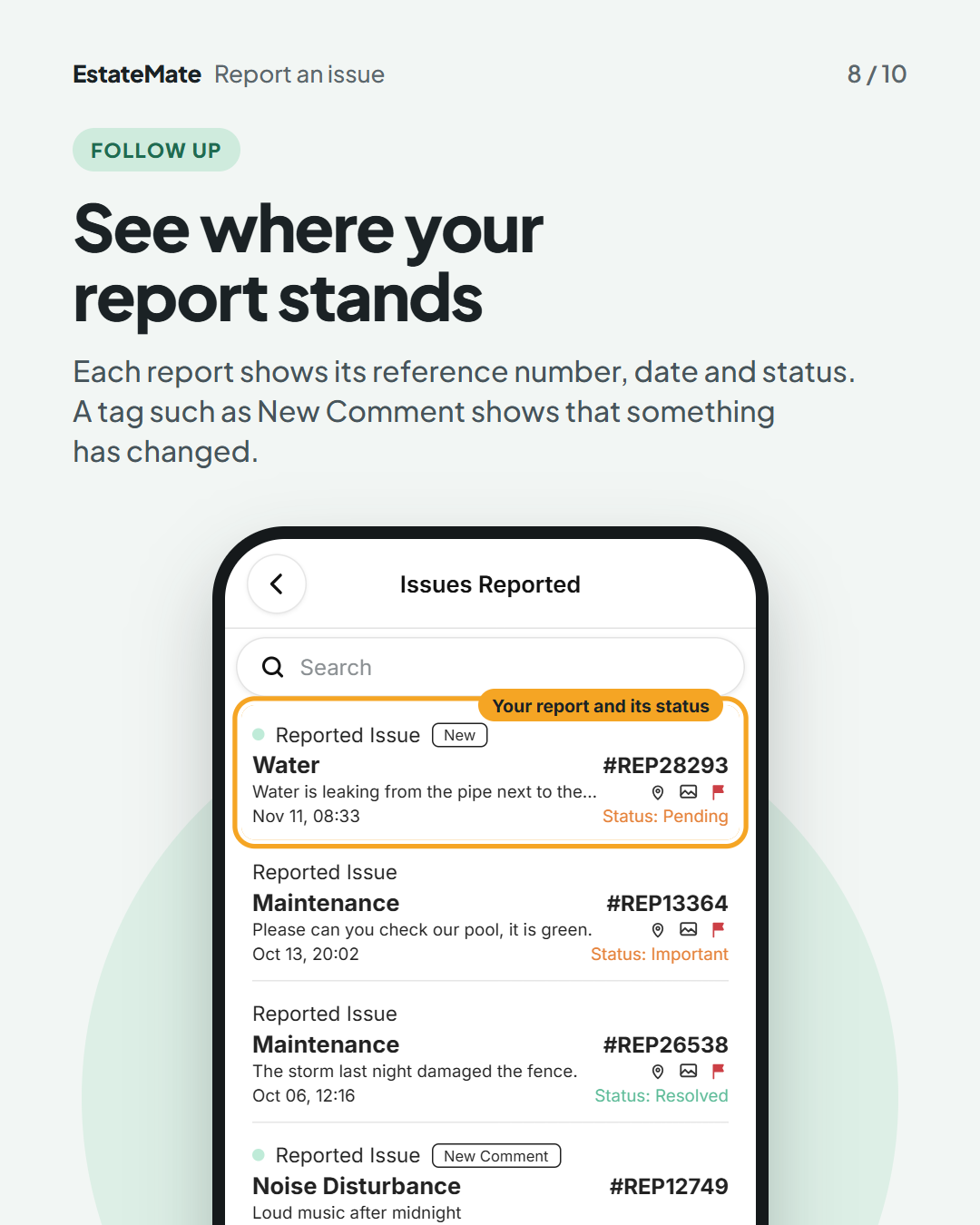
    The Issues Reported list. The first report, Water with reference #REP28293 and "Status: Pending", is circled and labelled "Your report and its status". Below are two Maintenance reports (Important and Resolved) and a Noise Disturbance report with a "New Comment" tag.
  9. Good to know: what the three statuses mean

    • Pending: your report has been sent and is waiting for estate management.
    • Important: estate management has marked it as important.
    • Resolved: estate management has marked it as resolved.

    Estate management can also reply with a comment. Look for the New Comment tag on your report.
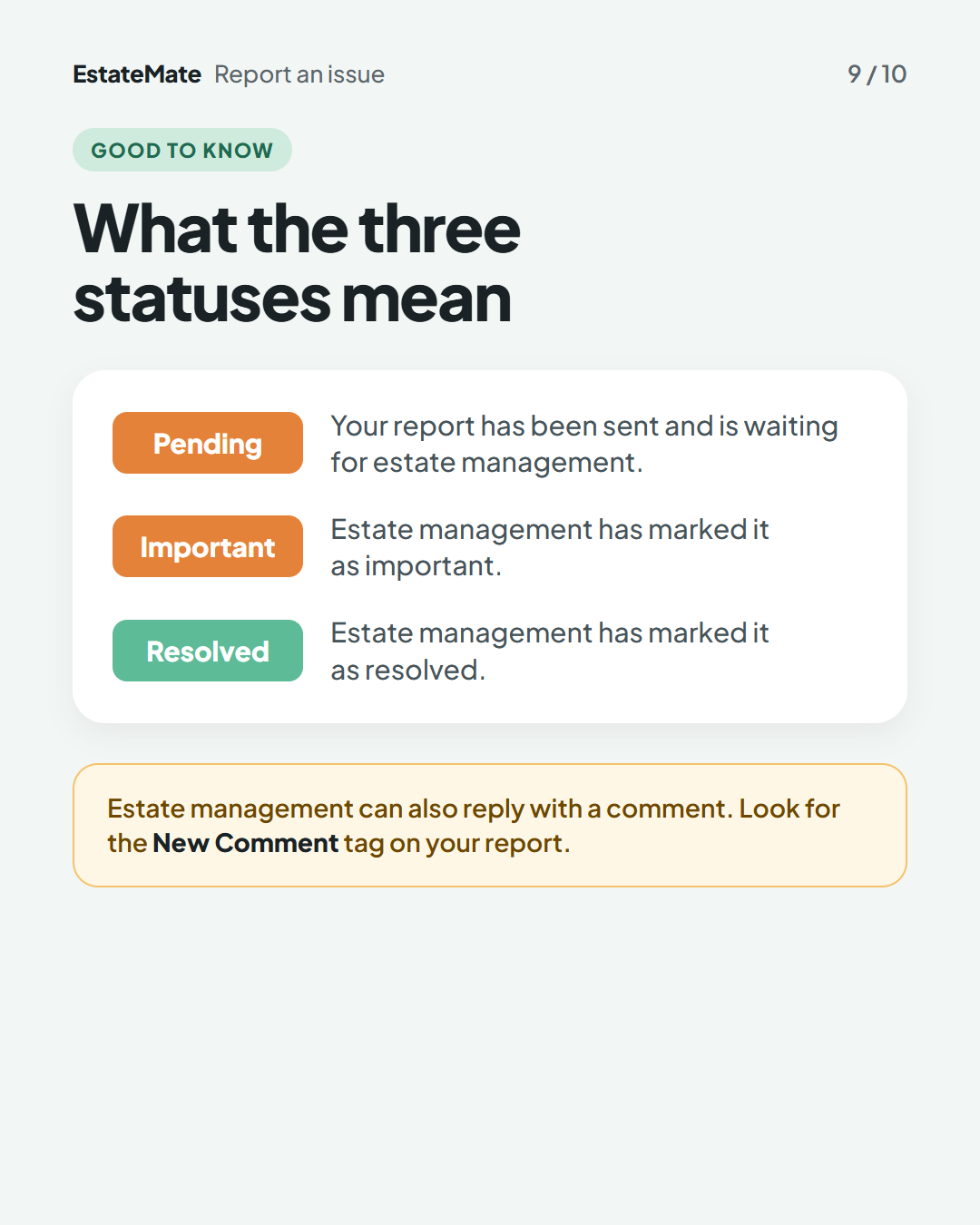
    A white panel with three coloured labels, Pending and Important in orange and Resolved in green, each with its meaning. An amber note below mentions comments and the New Comment tag.
  10. We're listening

    We don't always get it right first time. Building something flexible enough for hundreds of communities, each with its own way of doing things, is always a good challenge. Your feedback is how we make it better. If something feels harder than it should, please let us know at support@estatemate.co.za.
    Closing card on a dark background: "Tell us how it's working for you", with the support email address and the sign-off "The EstateMate team".

The subjects you can choose are set by your community, so your list may look different from the example in this guide.

The icons on your home screen may also be in a different order from the example on the first card.

Still stuck?

Send us a request. We’ll know you were reading this guide, so you won’t have to explain where you are.

Submit a request