
Skip to content
Product
FeaturesEverything the app does, feature by feature IntegrationsWorks with your gate, security and managing agent PricingFrom R10 per property per month
Who it’s for
Trustees and directorsRun the scheme without the WhatsApp chaos Estate managersOne dashboard for the whole estate Managing agentsWe plug into your system. We don’t replace it. ResidentsGet the app for your estate PartnersFor access control and security providers
Resources
BlogGuides for running a community scheme
Help Contact
Log in
Residents and estate managersLog in to your estate Property managersFor managing agents
  1. Help centre
  2. Guides
  3. Panic button, alerts and calling security
Search the help centre
GuideFor residents

Panic button, alerts and calling security

Use SECURITY on your home screen to send a silent panic alert, tip off management, warn your community or call security.

Checked for app version 4.37.1Updated 11 November 2026

In short
  • The Panic Button sends a silent alert straight away, with your name, property and location. There is no confirm step.
  • An Anonymous Tip-Off goes to management only. A Community Alert goes to every member of your community.
  • View Phone Numbers shows the security contacts your community has set, each with a CALL button.
  1. Get help fast, or raise the alarm

    Tap SECURITY on your home screen. From there you can press the Panic Button, send an alert or call security.
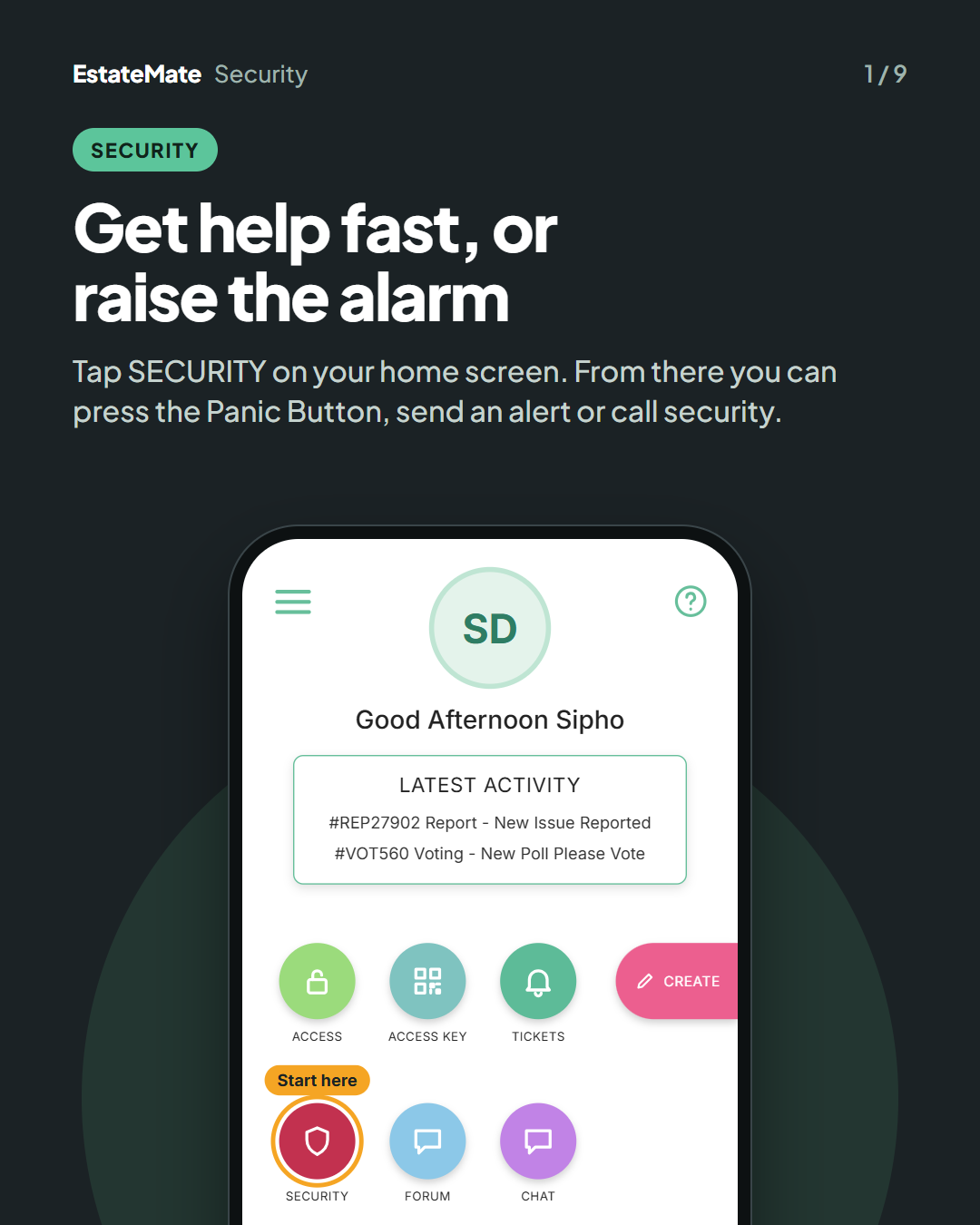
    Cover card. The home screen with a sample resident's initials, a greeting and the round icons ACCESS, ACCESS KEY, TICKETS and, below, SECURITY, FORUM and CHAT. The red SECURITY icon is circled and labelled "Start here".
  2. The Security screen: three ways to reach security

    Press the Panic Button in an emergency, create an alert, or view the numbers to call. Using these means you agree to the Security Disclaimer.
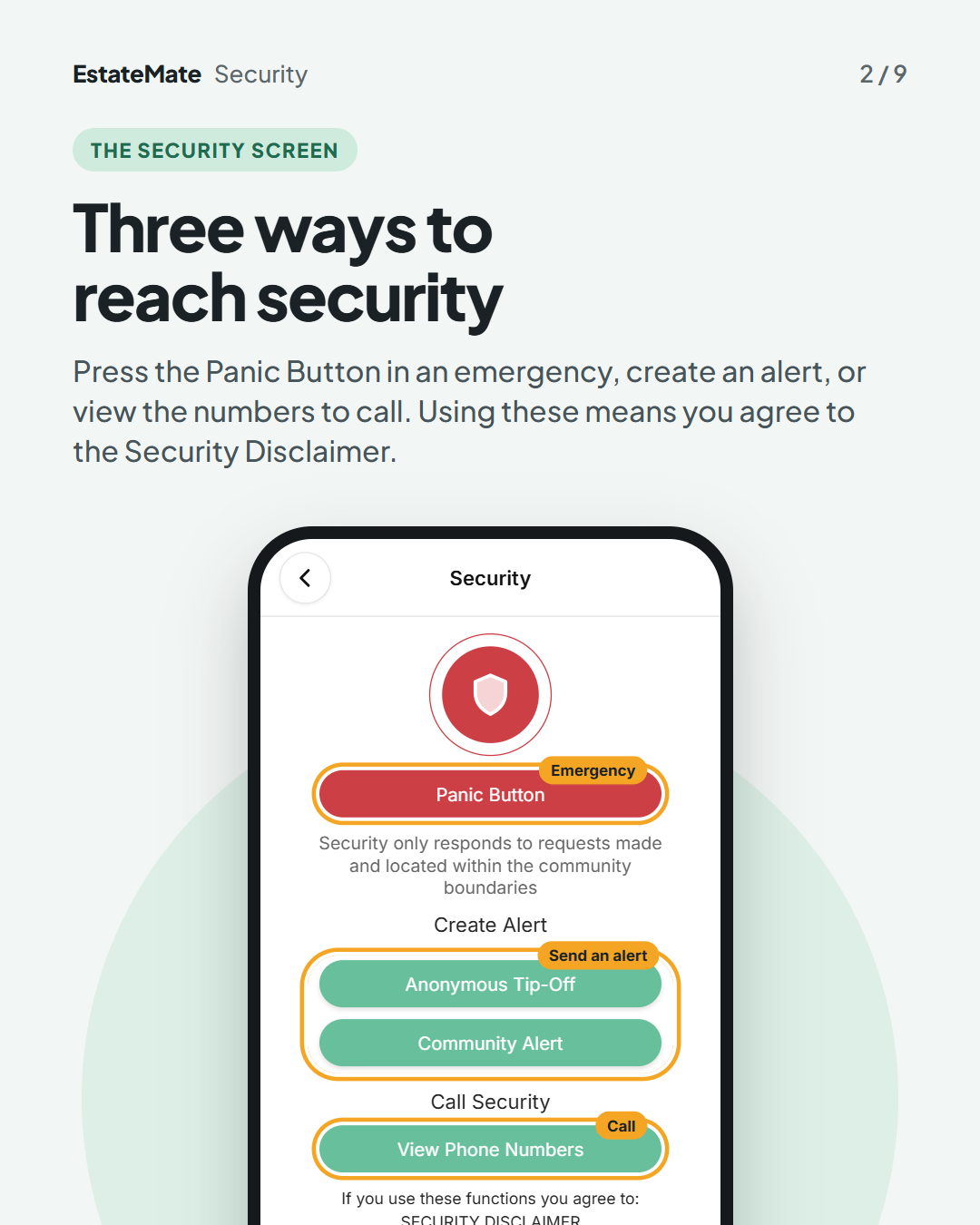
    The Security screen. A red shield sits above the red Panic Button, which is circled and labelled "Emergency". A note reads "Security only responds to requests made and located within the community boundaries". Under "Create Alert", the Anonymous Tip-Off and Community Alert buttons are circled together and labelled "Send an alert". Under "Call Security", View Phone Numbers is circled and labelled "Call". A Security Disclaimer link is at the bottom.
  3. Panic Button: one tap sends a silent panic alert

    1. It sends straight away. There is no confirm step, so only tap it in a real emergency.
    2. Your details go with it. The alert carries your name, your property and your location.
    3. It is silent. Security is told that you may be unable to speak or answer a call.

    Security only responds to requests made and located within the community boundaries.
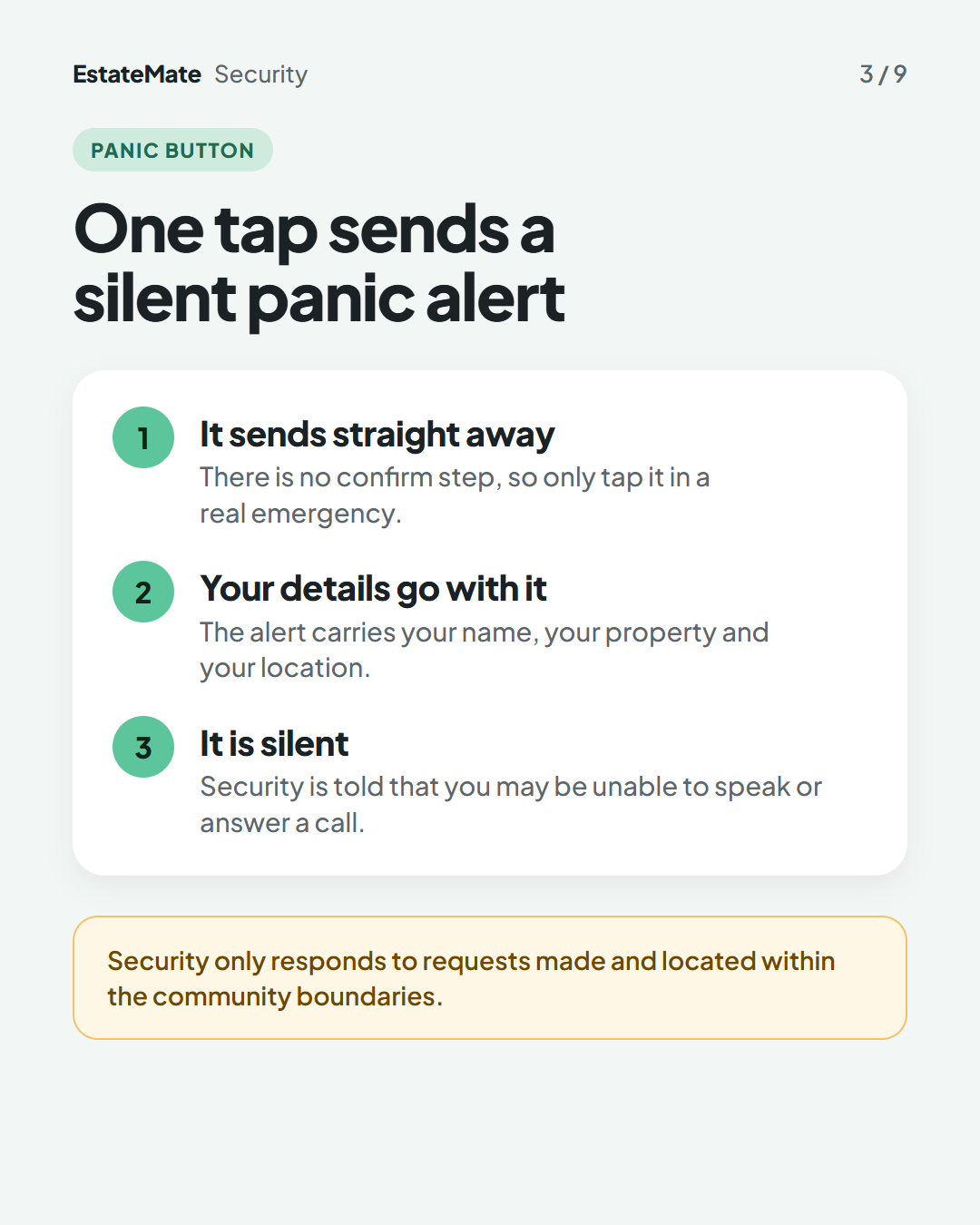
    A white panel with three numbered points: it sends straight away, your details go with it, it is silent. An amber note below repeats that security only responds within the community boundaries.
  4. Good to know: two kinds of alert, two audiences

    Anonymous Tip-Off goes to management only. Your identity is not revealed. Add a subject and the details, and attach a photo if you have one.

    Community Alert goes to all members of your community. Everyone is alerted and your name shows on the alert. Keep it short: up to 280 characters.
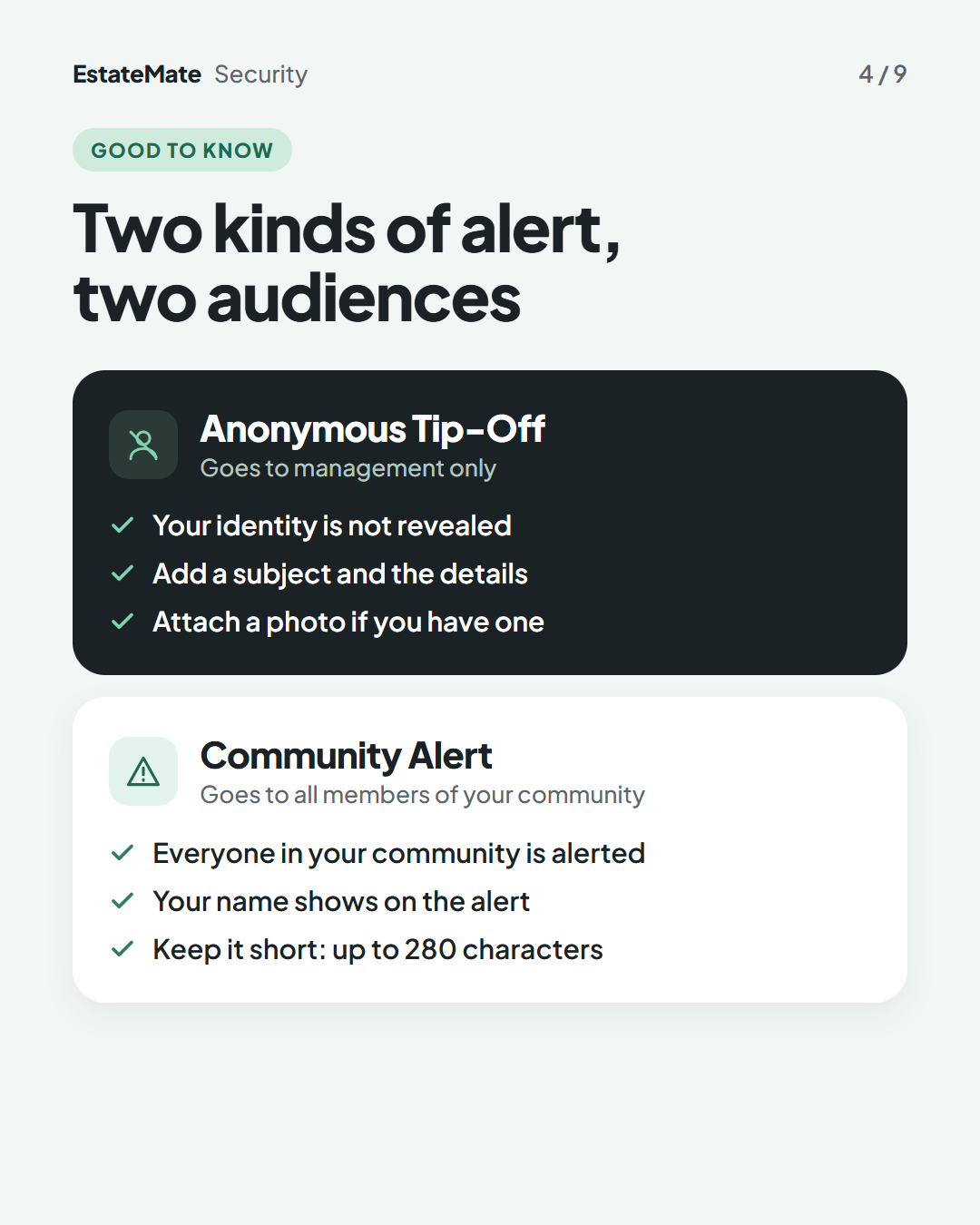
    Two stacked panels. The dark panel, "Anonymous Tip-Off", has three ticks: your identity is not revealed, add a subject and the details, attach a photo if you have one. The white panel, "Community Alert", has three ticks: everyone in your community is alerted, your name shows on the alert, up to 280 characters.
  5. Create alert: tip off management without your name

    Tap Anonymous Tip-Off. Add a subject, the details and a photo if you have one, then tap Submit.
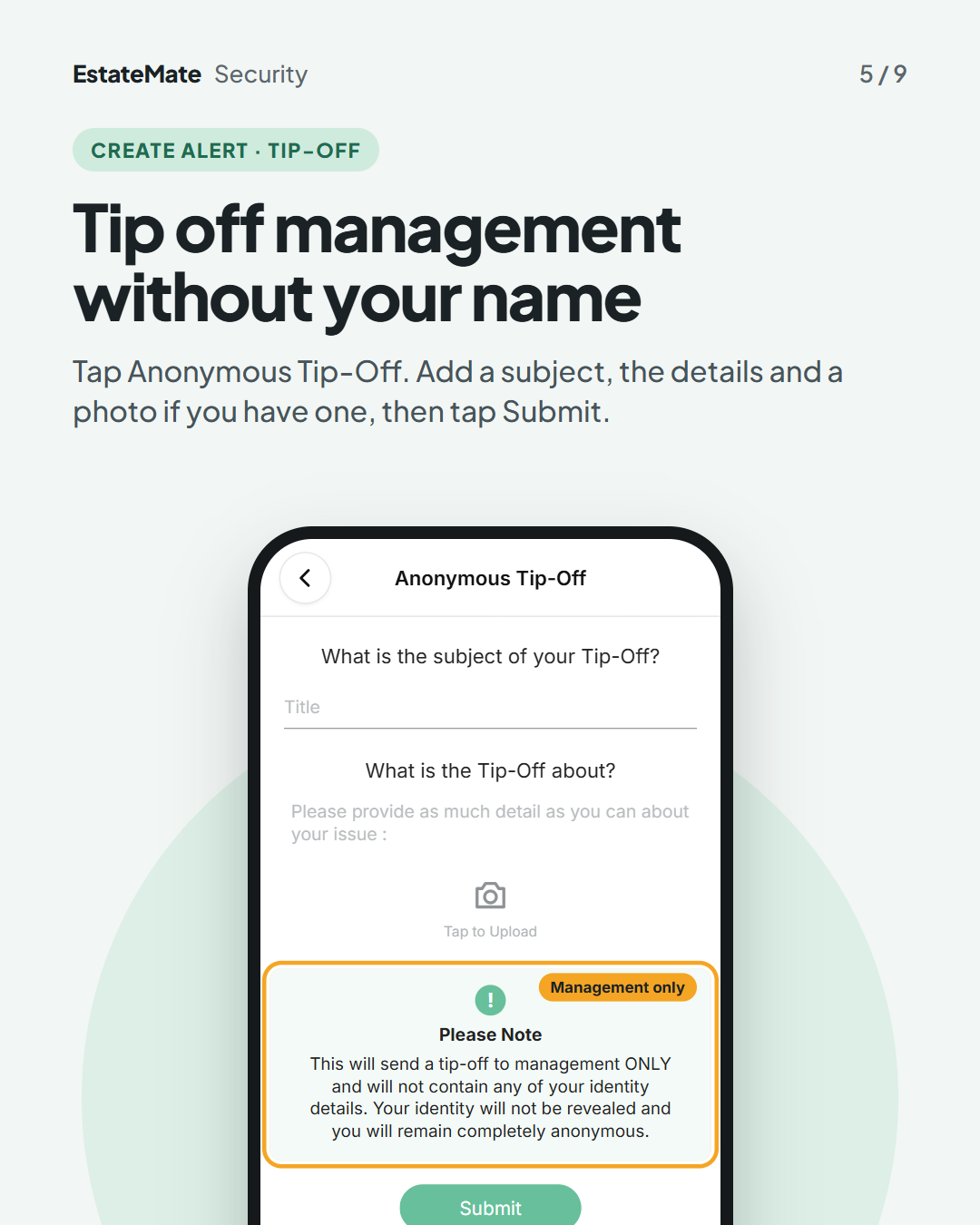
    The Anonymous Tip-Off form with a Title field, a details field and a camera icon to upload a photo. A "Please Note" box, circled and labelled "Management only", says the tip-off goes to management only and that your identity will not be revealed. The Submit button is below.
  6. Create alert: warn your whole community

    Tap Community Alert. Add a subject and up to 280 characters, then tap Submit. Every member of your community is alerted.
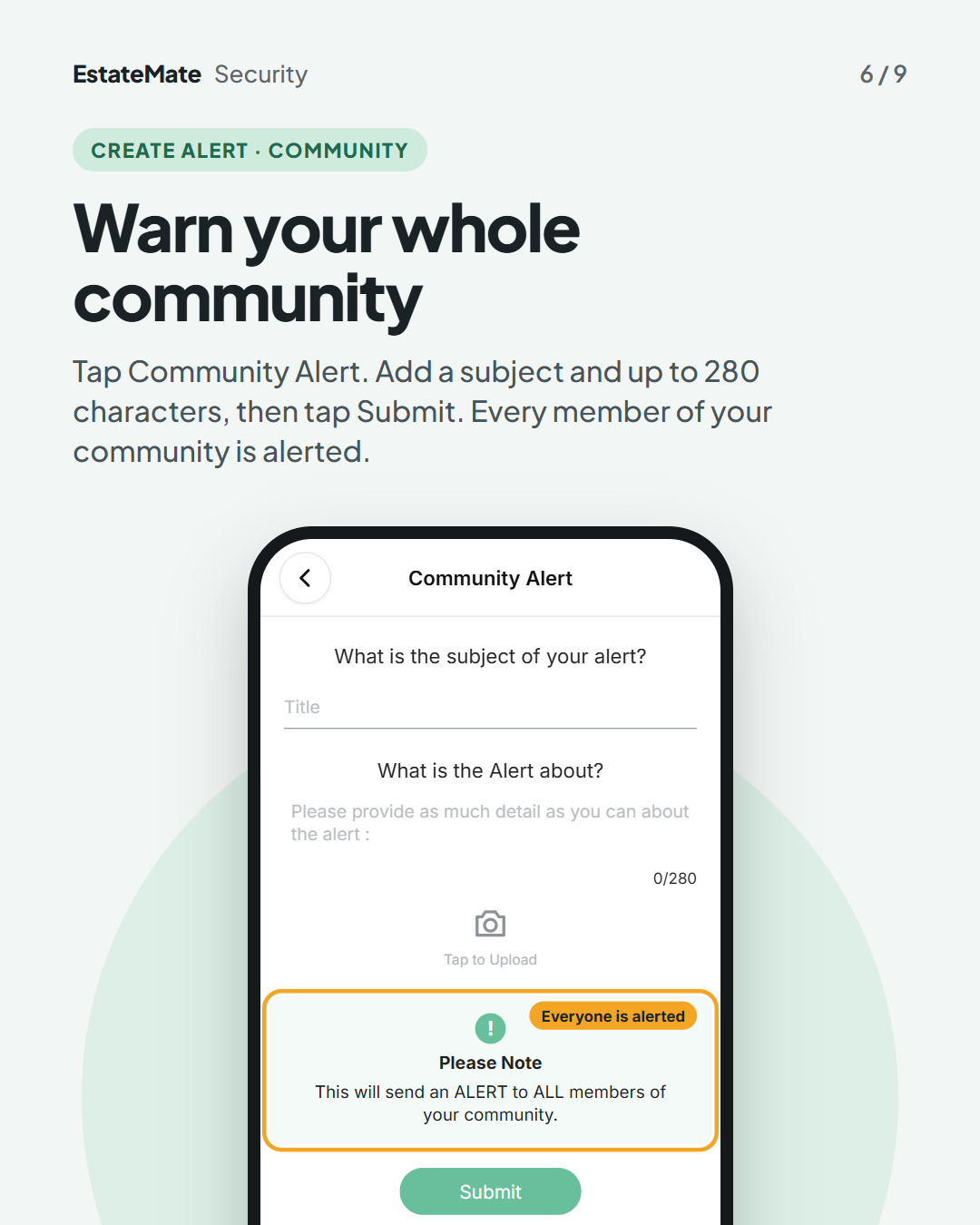
    The Community Alert form with a Title field, a details field with a 0/280 counter and a camera icon to upload a photo. A "Please Note" box, circled and labelled "Everyone is alerted", says this will send an alert to all members of your community. The Submit button is below.
  7. Call security from the app

    Tap View Phone Numbers, then CALL next to the contact you need. The numbers are set by your community.
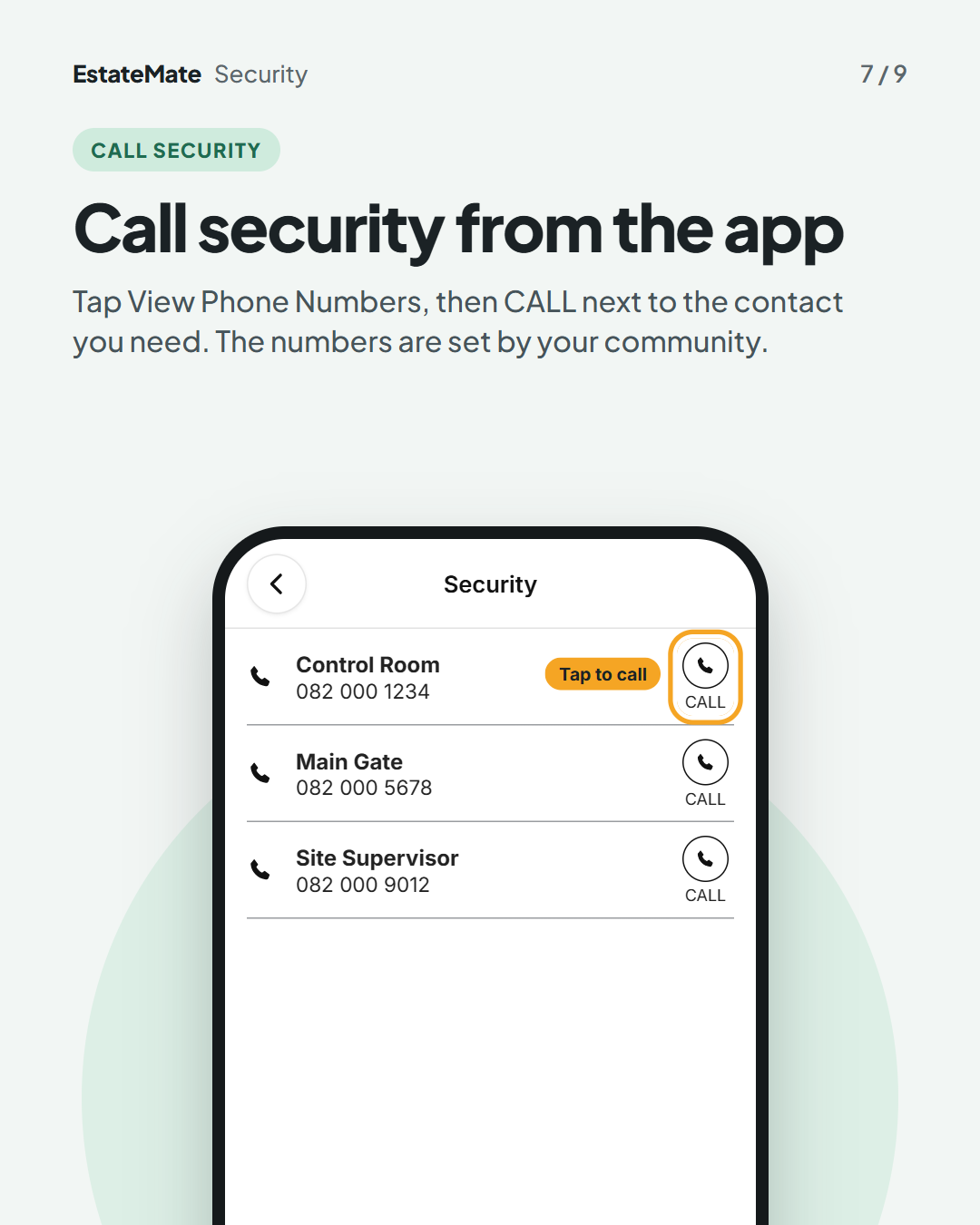
    A list of three sample security contacts (Control Room, Main Gate, Site Supervisor), each with a number and a round CALL button. The first CALL button is circled and labelled "Tap to call".
  8. Follow up: read community alerts later

    On your home screen, tap TICKETS, then Security. Open an alert to read it and see who sent it and when.
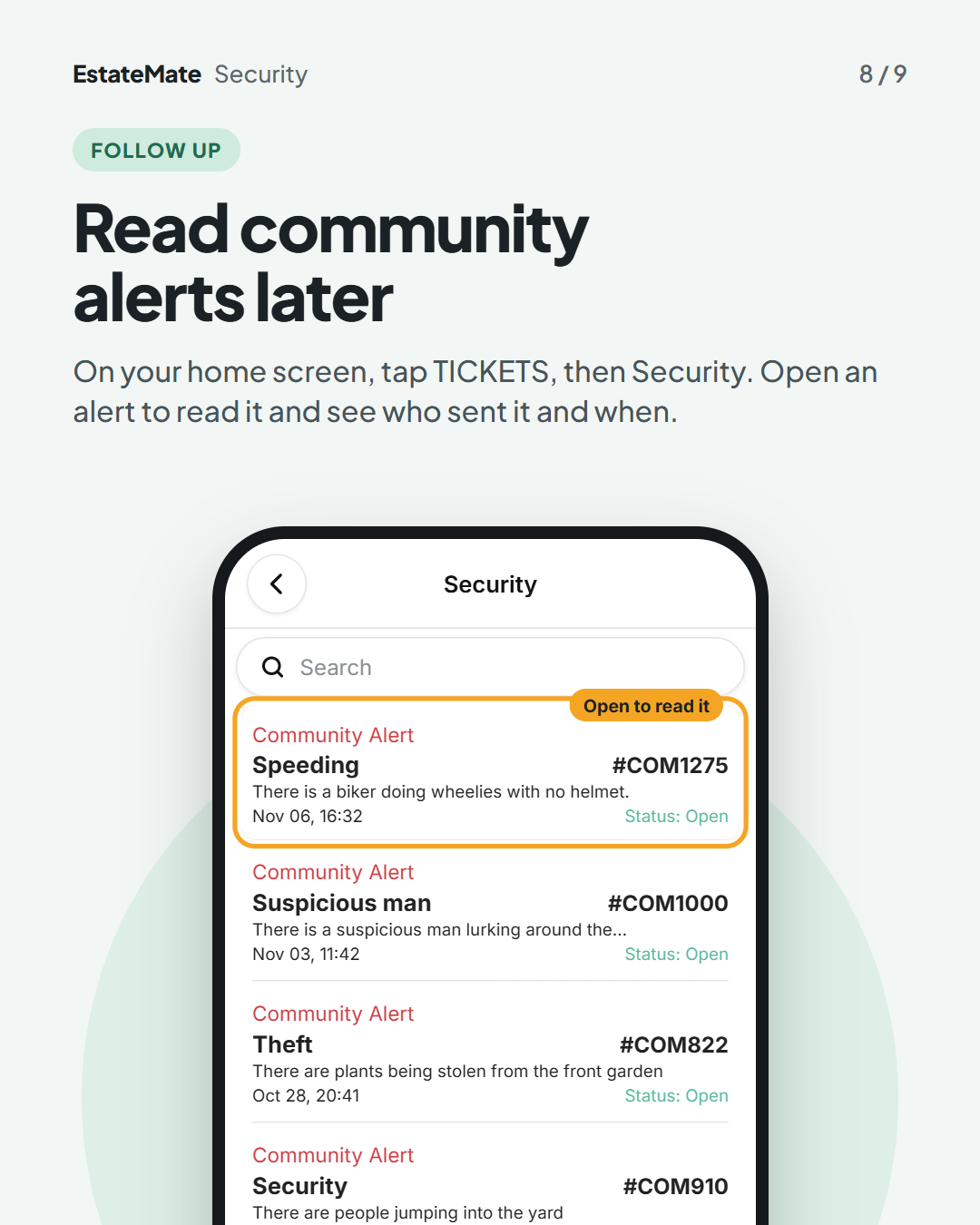
    A Security list of Community Alerts with a search box. Each row shows the subject, a reference, the first line of the alert, the date and "Status: Open". The first alert, Speeding, is circled and labelled "Open to read it".
  9. We're listening

    We don't always get it right first time. Building something flexible enough for hundreds of communities, each with its own way of doing things, is always a good challenge. Your feedback is how we make it better. If something feels harder than it should, please let us know at support@estatemate.co.za.
    Closing card on a dark background: "Tell us how it's working for you", with the support email address and the sign-off "The EstateMate team".

The icons on your home screen may be in a different order from the example on the first card.

Still stuck?

Send us a request. We’ll know you were reading this guide, so you won’t have to explain where you are.

Submit a request